Point of sale
Your shop counter, on your own site.
Turn a tablet, a laptop or a phone into a till. Scan or tap products, take cash or a card on a Stripe, Square or SumUp reader, take things back, and count the drawer at closing. Every sale is an ordinary KahunaCart order, on the same stock as your website.
Version 1.0.1 Released
Selling
Ring it up with a tap or a scan
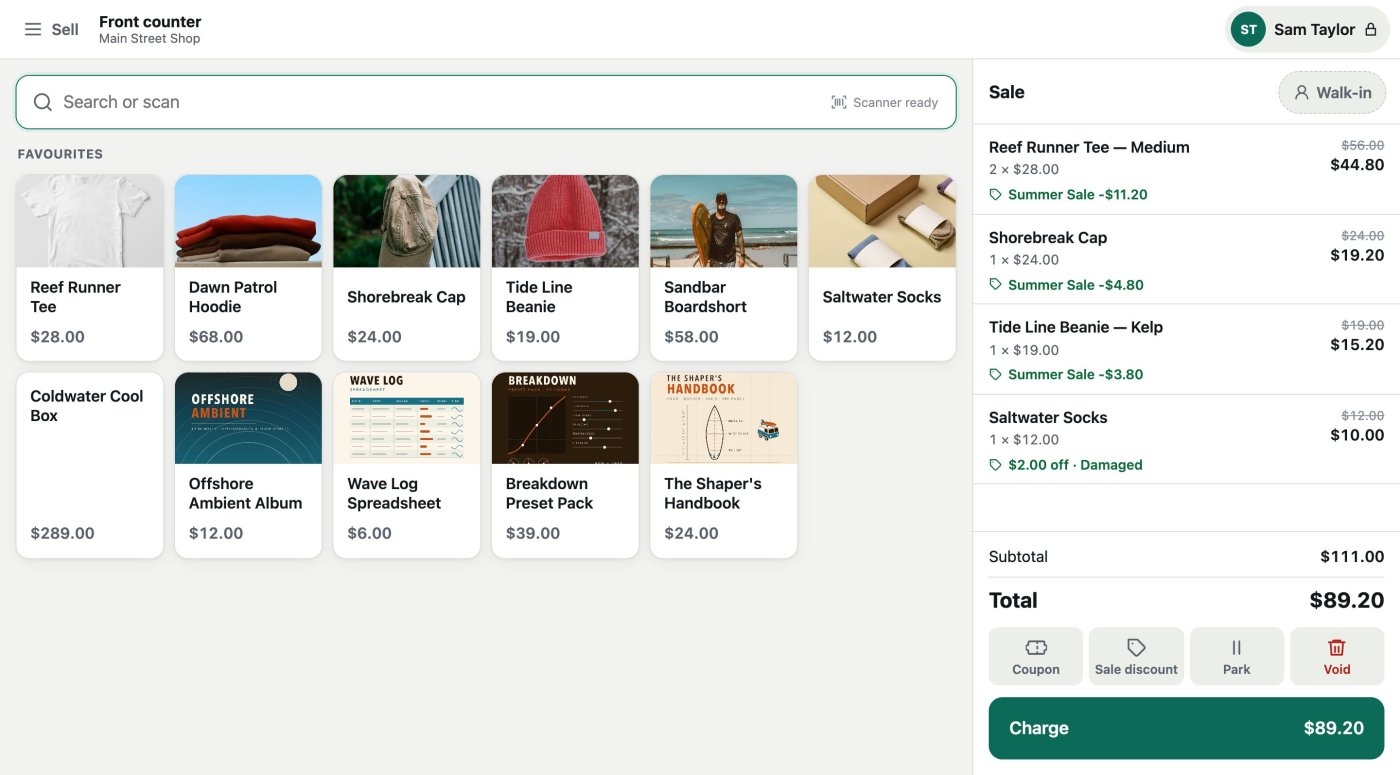
The Sell screen has a search bar your barcode scanner types into, a grid of the products you sell most, and the sale. KahunaCart prices the basket as each item goes in, with your sales, coupons and customer prices applied.
- Scan a barcode and the product goes straight into the sale. Type a word and the till lists what matches, with its price and stock.
- A grid of favourites for what you sell most, for every location or just one.
- Take money off one line or the whole sale, as a percent or an amount. The reason you give prints on the receipt.
- Find or add a customer and the sale is repriced for their group, with their store credit ready to use.
- Park a sale while someone goes back for their wallet, or void one that was never charged.
- Stock
- One stock for the counter and the website. A counter sale takes stock exactly as an online order does.
- Tax
- Worked out at the address of the register's pickup location, whatever the customer's address is.
- Scanners
- Any scanner that types like a keyboard. Barcodes, SKUs and order numbers are all matched.
- Discount limit
- Set the most a cashier may take off. Anything over it needs a manager's PIN.
Docs Selling →
Payment
Cash, card, or some of each
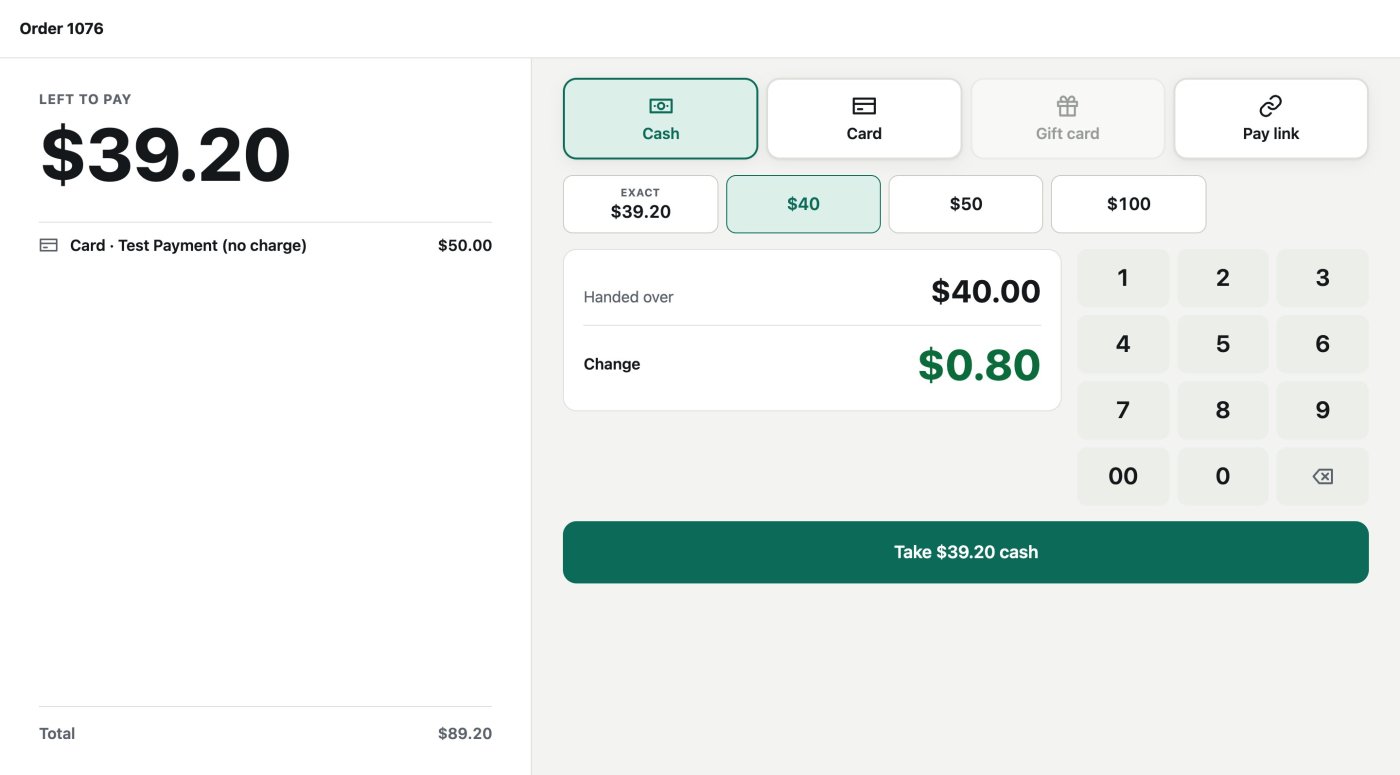
The Pay screen shows what's owed in big type, with a button for each way to pay. Put part of it on a card and take the rest in cash, and the till works out the change.
- Cash with buttons for the next notes up, and the change shown large.
- Cards on a Stripe Terminal, Square Terminal or SumUp Solo. The till sends the amount, the customer taps or inserts, and the payment lands on the order.
- Store credit, gift cards, and a pay link drawn as a QR code the customer pays from their own phone.
- Print the receipt through the browser, email it, or skip it. Each register has its own setting.
- A double tap or a dropped connection never charges twice. The retry records one payment.
- Card readers
- Stripe WisePOS E and Reader S700, Square Terminal and SumUp Solo, each through its provider's add-on and your own account with that provider.
- Try it first
- The test provider's simulated readers approve, decline or time out on cue, with no account and no hardware.
- No guessing
- If a reader goes quiet, the till shows the payment as checking and keeps asking until the provider answers.
- Cash rounding
- For currencies with no small coins, the cash that pays the rest is rounded to your smallest coin, and the receipt shows it.
Returns
Take it back at the counter
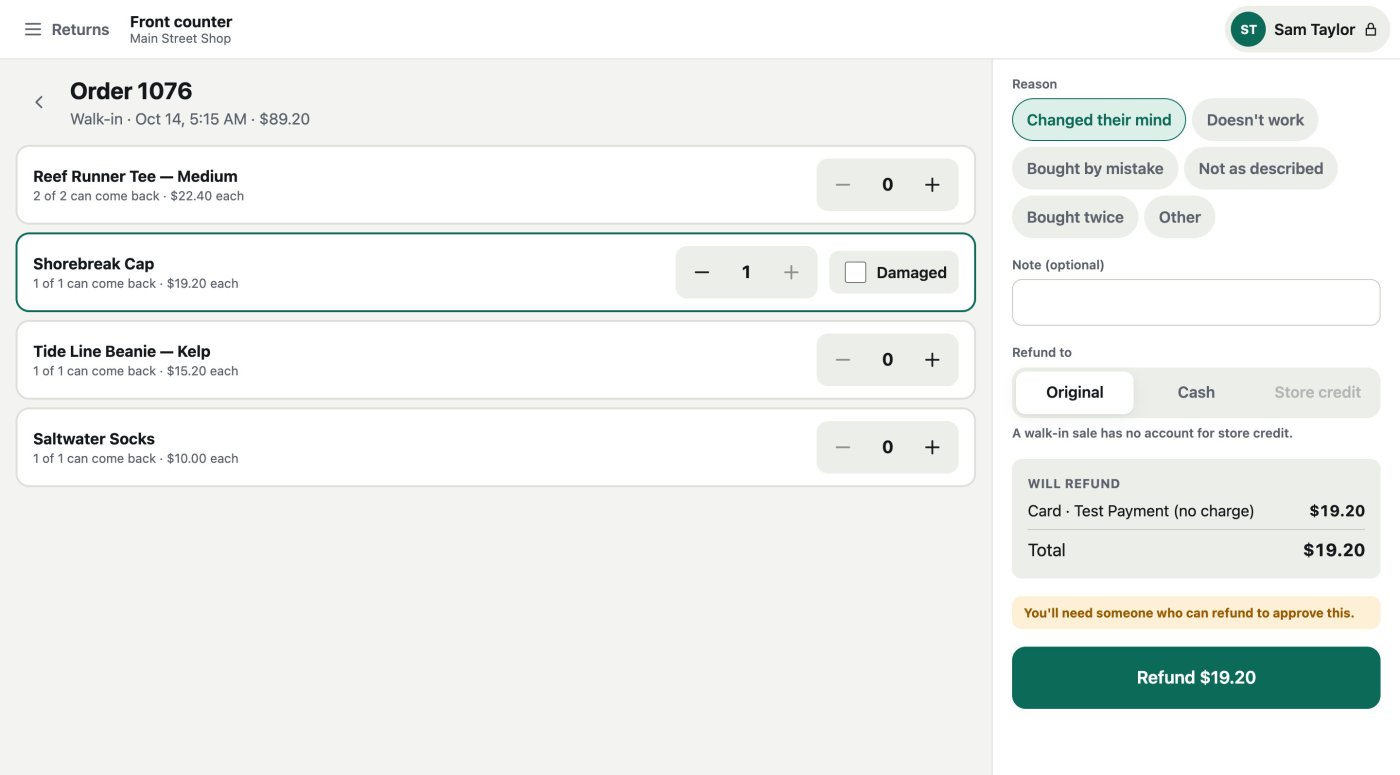
Scan the receipt, pick what's coming back, and see exactly where the money goes before you press Refund. The item goes back on the shelf and the refund goes out in the same step.
- Every till receipt carries its order number as a barcode, so a return starts with a scan. Or search by number, email or name.
- Any order can come back, including one bought on your website.
- Refund to the way it was paid, in cash from the drawer, or as store credit.
- Tick Damaged for anything that can't be sold again. It's refunded but stays out of stock.
- Cash refunds come out of the shift's drawer, so the count at closing still adds up.
- Who can
- Taking returns is a permission of its own. Without it, a manager approves the return with their PIN.
- Card refunds
- A card refund can take days at the provider. The till doesn't wait for it, and the shift report lists it until it lands.
- Your rules
- Staff decide at the counter, so the online return window doesn't apply. Your return fee does, if you charge one.
Docs Returns →
Shifts
Count the drawer, close the day
Open a shift with a float, record cash going in or out, and count the drawer at closing. The till works out what should be there and freezes the Z report.
- Count by notes and coins, or enter one total. The till asks for the count before it shows what the drawer should hold, so nobody counts towards a number.
- Cash in and cash out each need a reason, like a bank deposit or petty cash, and both go on the report.
- The X report shows the shift so far, as often as you like, and prints on 80 mm receipt paper.
- The Z report has sales, payments by type, refunds, discounts, tax, takings per person and the drawer sums. It never changes after closing.
- If a drawer is short or over by more than your limit, you get a message.
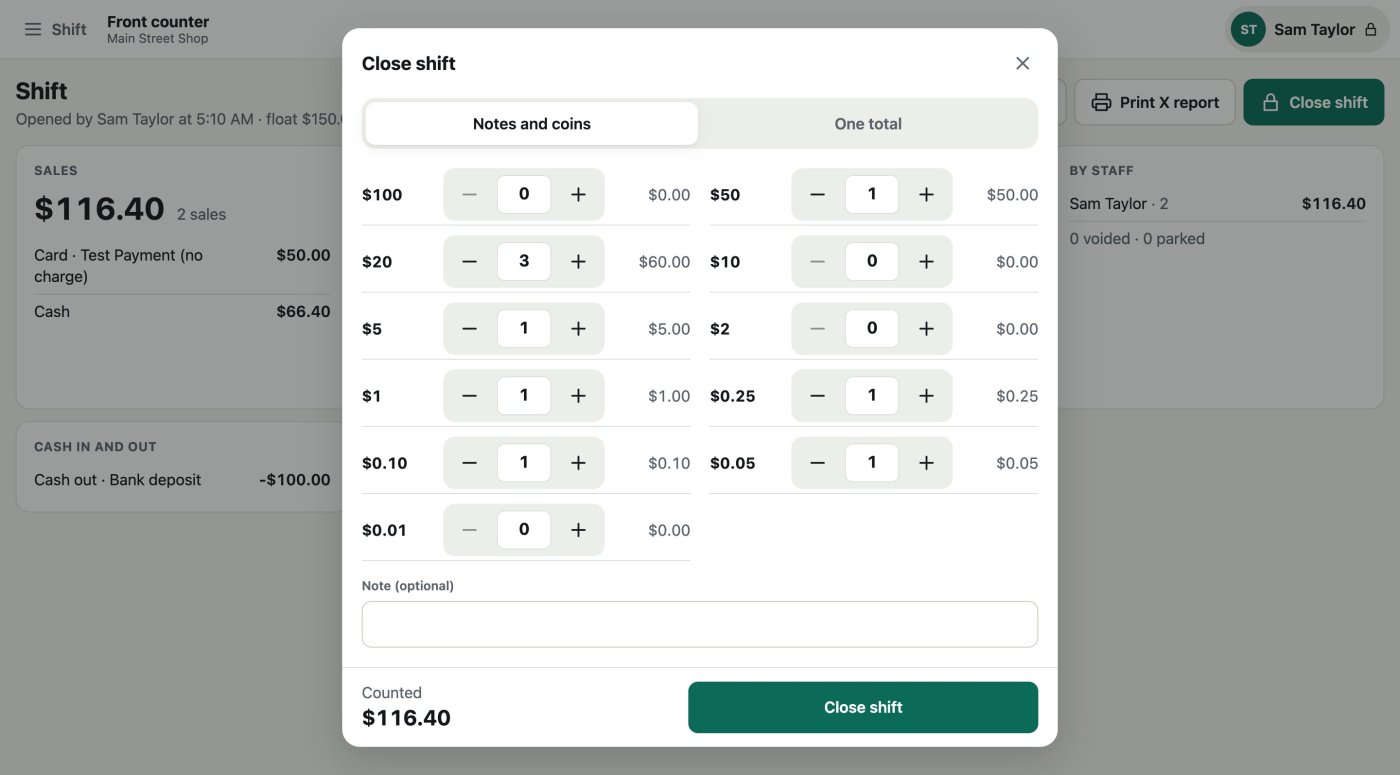
- Expected cash
- The float, plus cash taken, minus cash refunds, plus cash in, minus cash out.
- Currencies
- US dollars, euros, pounds, Swiss francs, Canadian and Australian dollars count by their own notes and coins. Other currencies count as one total.
- One at a time
- A register has one open shift. Two tablets on the same register share it.
- Card refunds
- Closing doesn't wait for a card refund. The Z report lists the ones still on their way.
Docs Shifts and cash →
Staff
One tablet, everyone's own PIN
The tablet stays signed in, and whoever is serving taps their name and types their PIN. What they do is recorded under their name and checked against their own permissions.
- Three permissions: sell, take returns, and manage. Someone without refunds can't refund, even on a manager's tablet.
- A manager approves on the spot with their PIN: a return, a discount over the limit, or pairing a new tablet. The approval is written on the order.
- The till locks itself after a few idle minutes, five unless you change it. The sale on the screen is kept.
- Five wrong PINs lock that person for five minutes, and ten on one tablet lock the tablet.
- Selling on your own? Switch PINs off and the signed-in account serves.
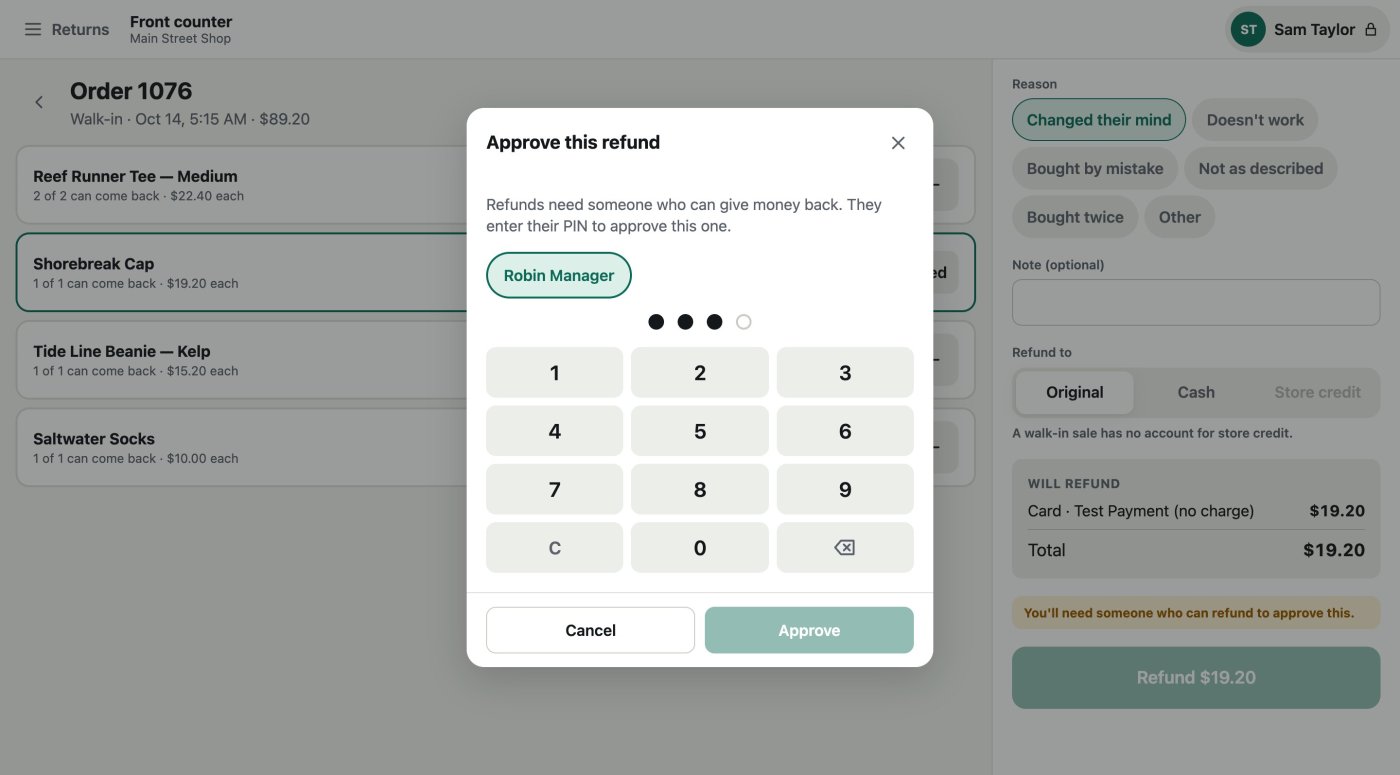
- Paired tablets
- A manager pairs each browser to a register once. A lost tablet is revoked from the admin and stops working as a till at once.
- PINs
- 4 to 8 digits, stored as a hash. Set, clear or unlock them on the Staff tab.
- Accounts
- Each person who sells is a Grav account with the till permission and API access.
Admin and reports
Every shift and register in your admin
A Point of sale section in the KahunaCart admin holds your registers, staff, favourites, shifts, reports and settings. Counter sales are ordinary orders, so your store's own reports count them too.
- Each shift keeps its X or Z report, its cash in and out, and every sale rung up on it, linked to the order.
- Reports for today, last month or any two dates, grouped by register, staff, location or way of paying, with a CSV download.
- A counter sale's order shows its register, who served and its shift. The Orders list has a Counter sales link.
- Add a register at any of your pickup locations, each with its own card reader and receipt setting.
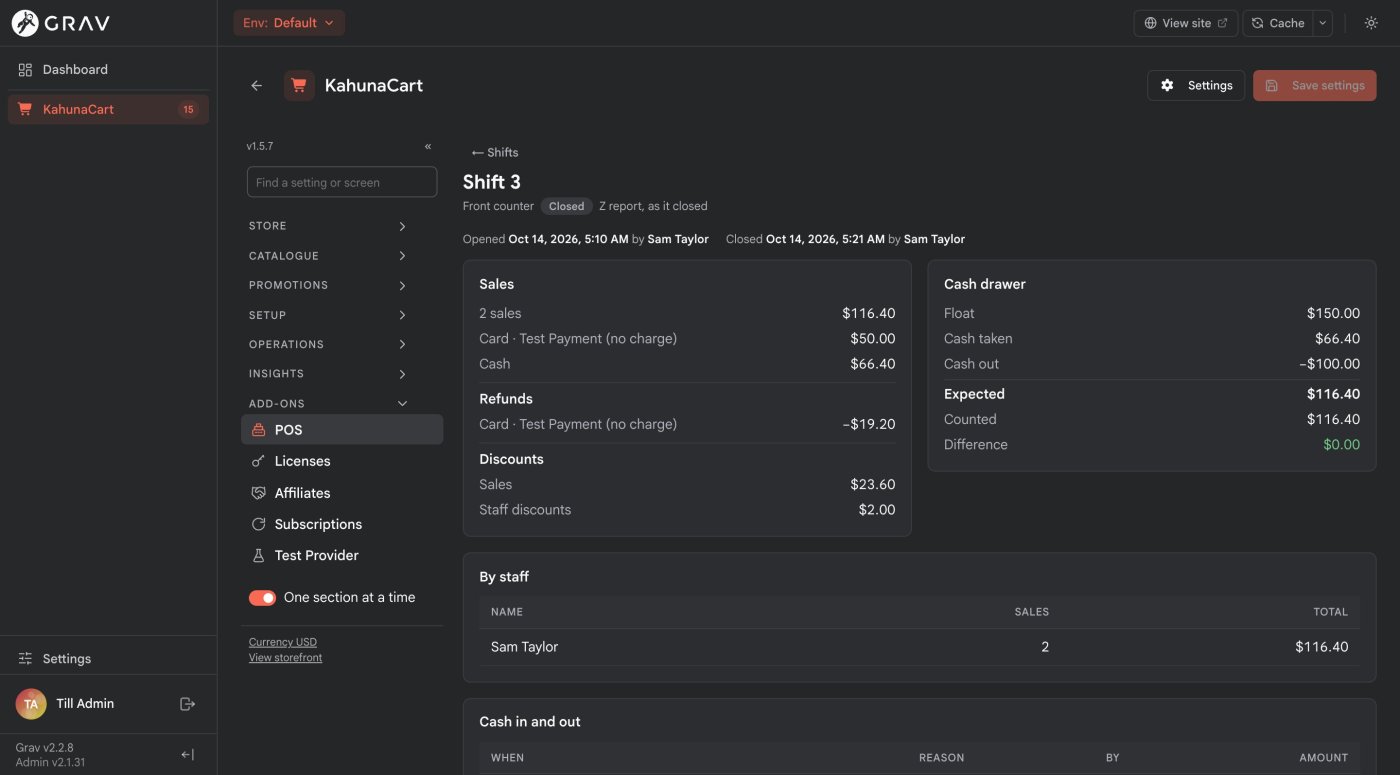
- Channels
- KahunaCart's sales reports split counter sales from online ones, and by location.
- AI tools
- The manager's routes are also MCP tools, so an AI assistant can read a shift or the sales report for you.
- Who sees it
- The Point of sale screens need the Manage point of sale registers, staff, shifts and reports permission. Cashiers only ever see the till.
Balances
Take what a booking still owes
Not every payment is for something on the counter. Find an order by its number, the customer's email or their name, and take what it still owes: the rest of a booking, or an order placed online and paid for in the shop.
- With Bookings installed, a booking that still owes money has a Take payment button on the front desk. It opens the till with that order ready to pay.
- Pay it any of the usual ways, in one payment or several.
- Once it's paid, Book next visit opens the desk's New booking sheet for the same customer.
- The shift counts it as a payment on an earlier order, not a sale, so your sales numbers stay true.
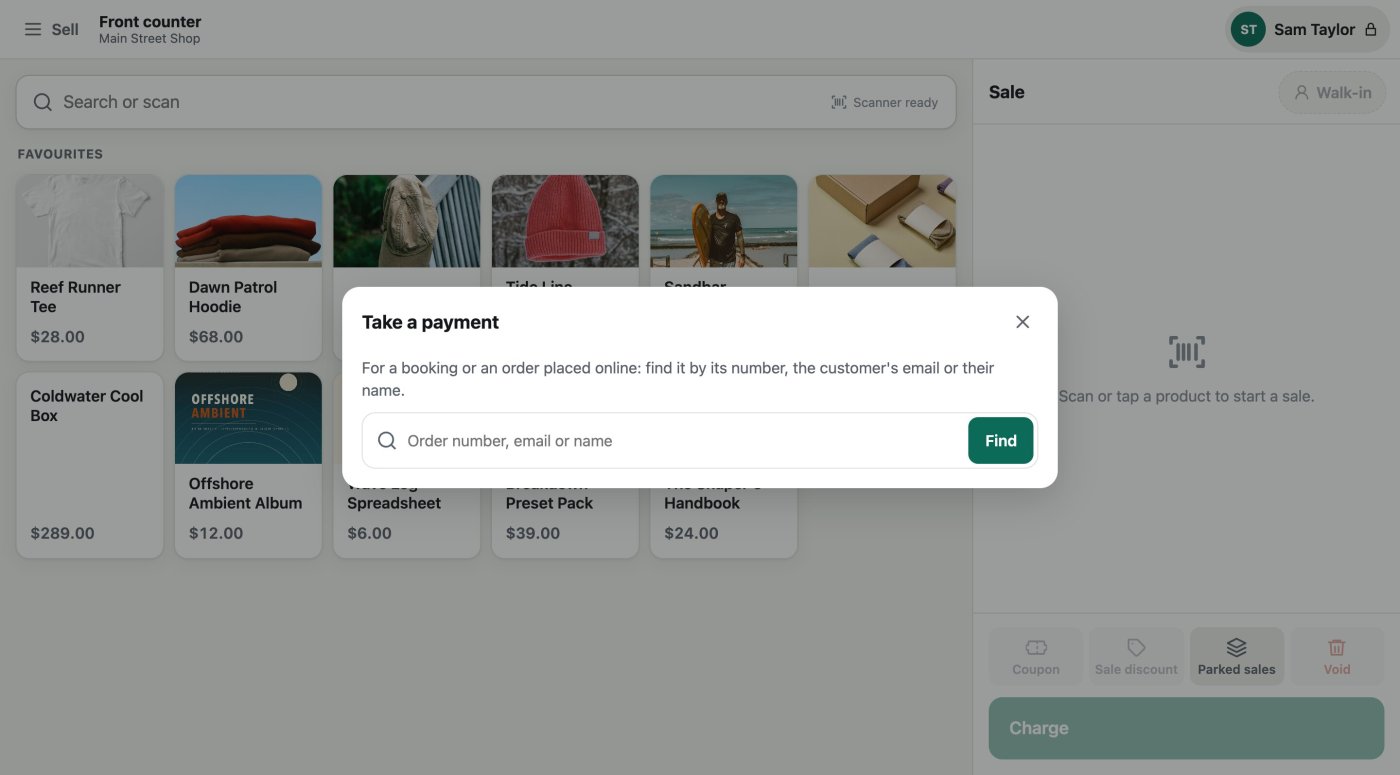
- Bookings
- The desk's Take payment button needs Bookings 1.1.10 or later.
- Services
- A bookable service isn't rung up at the till, because a booking needs a time. The till sends staff to the desk.
- Refused
- A cancelled order, one in another currency or one with a card still on a reader is turned down with a sentence that says why.
Your look
Your colours, your logo, light or dark
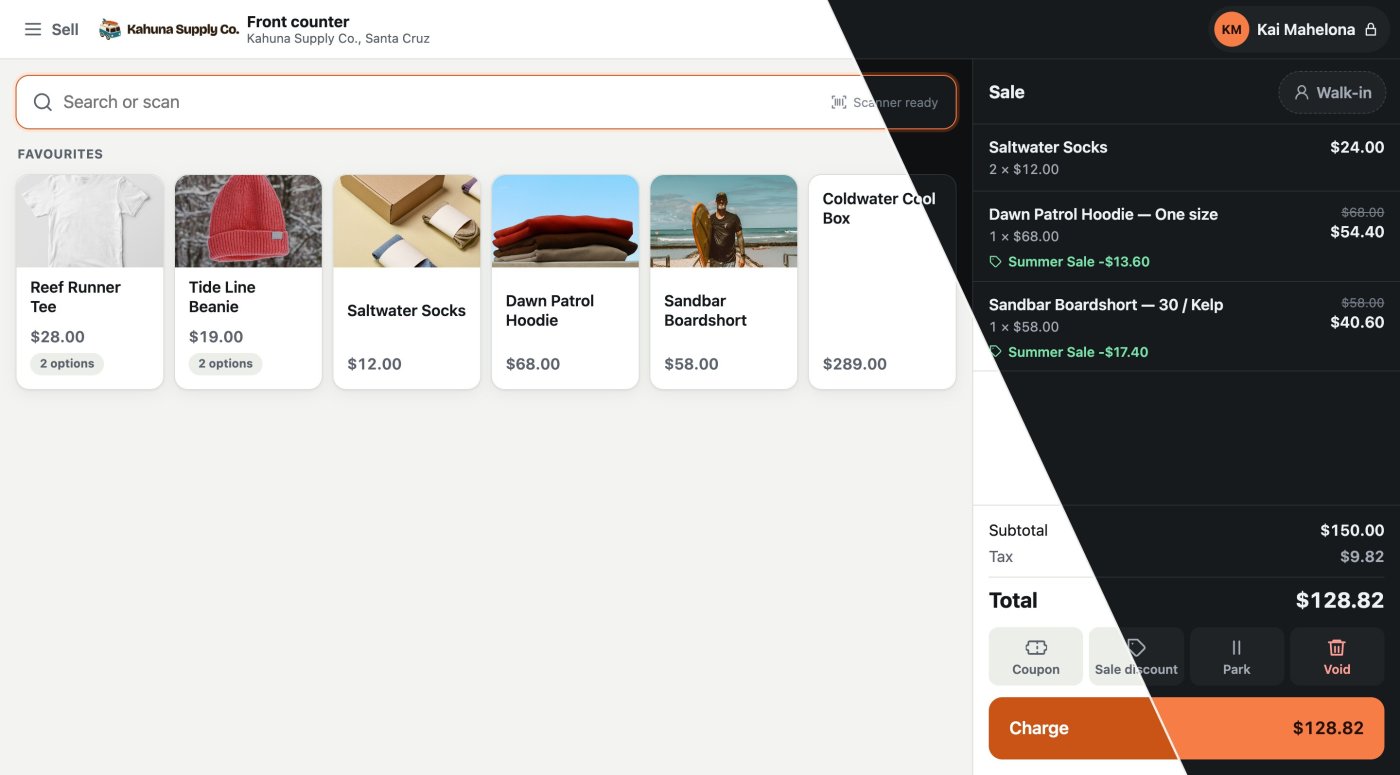
The till looks like your shop, not like ours. Pick your brand colour, upload your logo, and choose light, dark or whatever the tablet is set to. This is the demo store's till, light on the left and dark on the right.
- One colour does the lot: the buttons, their pressed shade, the text on them and the highlights, with a lighter version for dark mode.
- Text on the buttons stays readable. A very light or very dark colour is adjusted just enough, and bright colours keep white text where it reads.
- Your logo on the sign-in and Who's serving? screens and in the bar along the top, with a second one for dark mode if your lettering is dark.
- Follow the device, or keep the till light or dark whatever the tablet says. The right theme is there before the first paint, with no flash.
- The home-screen icon and the browser's bar take your colour too.
- Settings
- Brand colour, Logo, Logo for dark mode and Appearance, on the Look tab of the Point of sale settings.
- Logos
- PNG, JPG, SVG or WebP, uploaded from the admin.
- Empty
- Leave them empty and the till keeps its own green, with no logo.
Docs Look settings →
Hardware
What it works with today
The till runs in a browser, so it works with whatever the browser can talk to. Here's what that covers in this release.
| Hardware | Works today |
|---|---|
| Tablet, laptop or phone | Yes, in any current browser. It's built for a landscape tablet and opens full screen from the home screen. |
| Receipt printer | Yes, any printer the browser can print to. Receipts and reports are laid out for 80 mm paper. |
| Barcode scanner | Yes, any scanner that types like a keyboard. |
| Card reader | Stripe WisePOS E and Reader S700, Square Terminal and SumUp Solo. Bluetooth and USB readers and Tap to Pay aren't supported yet. |
| Cash drawer that opens by itself | No. The till prints through the browser and sends no commands to a printer or a drawer. |
| Customer display | No. There's no second screen for the customer. |
The till needs a connection to your shop. There's no offline mode. Every price, stock check and payment comes from the shop, so when the connection drops the till says so and sells nothing it can't record. A card reader that was in the middle of a payment still finishes it, and the till picks up the result when it's back online.
Questions
Common questions
Do I need a card reader?
No. The till takes cash, store credit, gift cards and pay links without one. A reader adds the Card button to the register it belongs to.
Which card readers work?
Stripe WisePOS E and Reader S700, Square Terminal and SumUp Solo, each through its payment provider's add-on and your own account with that provider. A live SumUp account also needs an Affiliate Key. See hardware today.
Can I try it without a reader?
Yes. The test provider has simulated readers that approve a payment after a few seconds, and decline or time out on chosen amounts, so you can rehearse every screen first.
Does it work offline?
No. The till needs a connection to your shop for every price, stock check and payment. When the connection drops it says so and sells nothing it can't record. See no offline mode.
Will it open my cash drawer or run a customer display?
No. Receipts print through the browser's own print dialog, to any printer the device can use. The till sends no commands to a printer, a drawer or a second screen.
Is the stock shared with my website?
Yes. A counter sale is an ordinary KahunaCart order, so it takes stock, counts in your reports and uses your coupons and customers exactly as an online order does.
Who charges the card fees?
Your payment provider, at its own rates for in-person payments. The add-on doesn't add a fee on top.
What do I need to run it?
Grav 2, KahunaCart 1.5.7 or later, the Login and API plugins, a pickup location for each place you sell, and the store's job worker running for emailed receipts. See getting started.
Does buying the add-on include a card reader?
No. Point of Sale is a one-time purchase for your site, with updates covered by your site's single renewal. Readers come from Stripe, Square or SumUp. See the store for the add-on price.
Open the till.
Buy Point of Sale once for your site. Pair a tablet, give your staff their PINs and ring up your first sale in cash or on a card reader, with updates covered by your site renewal.
Buy in the store