
Newsletters
Email marketing built into your store
Write campaigns, automate follow-up emails and organize your subscribers in the same admin as your orders. Use purchase history to reach relevant customers, and track results in your own store. Explore the screenshots below or try the read-only demo admin; sign-in details are on its login page.
Version 1.1.17 Released
Overview
Manage subscribers alongside your customers
Keep your mailing list and order history in the same place. Newsletters records each subscriber's signup source and consent details, while keeping a purchase separate from permission to receive marketing emails.
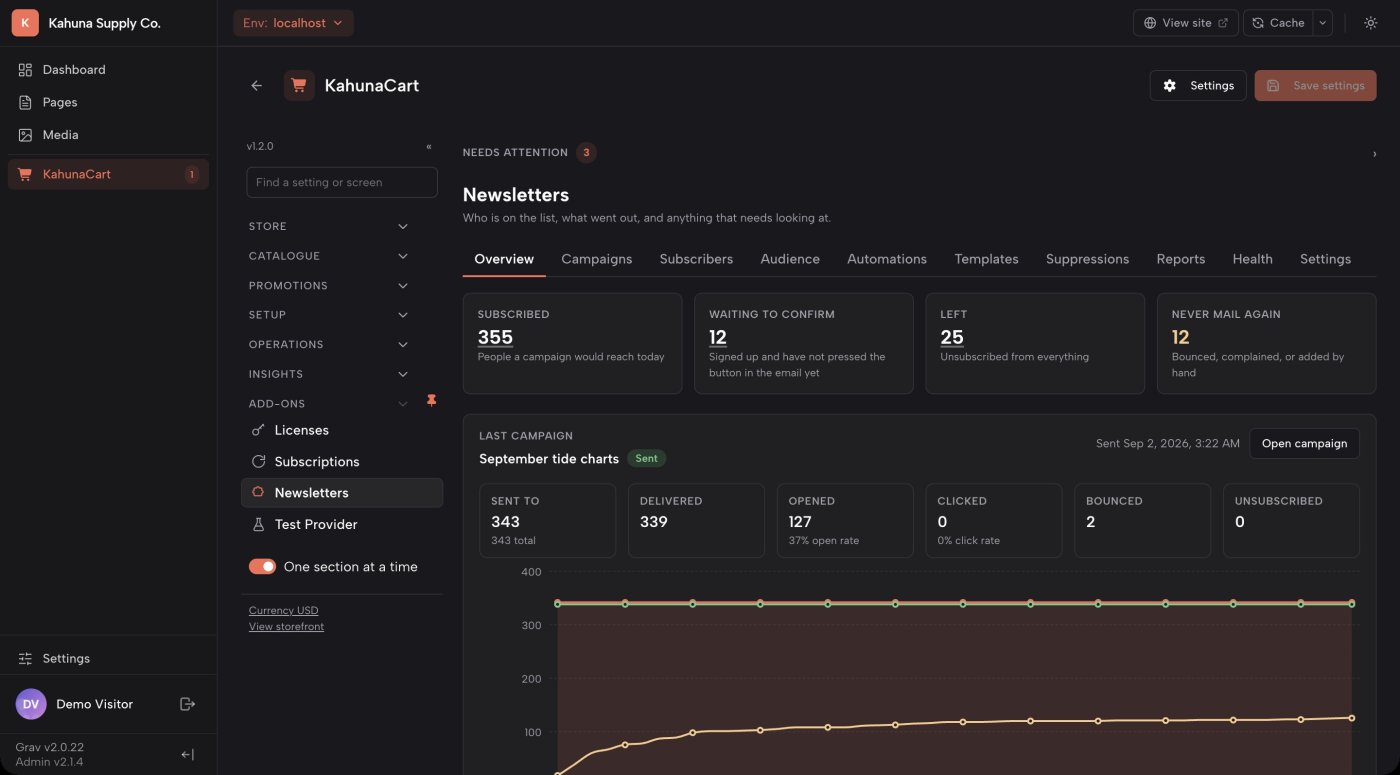
- See subscriber totals, recent campaign results and list growth on the overview screen.
- Manage campaigns, subscribers, templates, automations and reports from the Newsletters section.
- Assign separate permissions for viewing, editing and sending campaigns.
- Open alerts to review sending problems before your next campaign.
- Requirements
- Newsletters needs KahunaCart 1.2.0 or later, configured email delivery and a running scheduler. Provider delivery reports require Grav Email 5.1.0 or later.
- Consent records
- Each signup records its source, time, consent IP address and a hash of the wording shown to the subscriber.
- Subscriber status
- Track pending, subscribed, unsubscribed, bounced and complained addresses. Bounces and complaints prevent further sending to that address.
- Tracking
- Open and click tracking uses your store's domain. These engagement events do not collect IP addresses, device details or location data.
Campaigns
Write, preview and send your campaigns
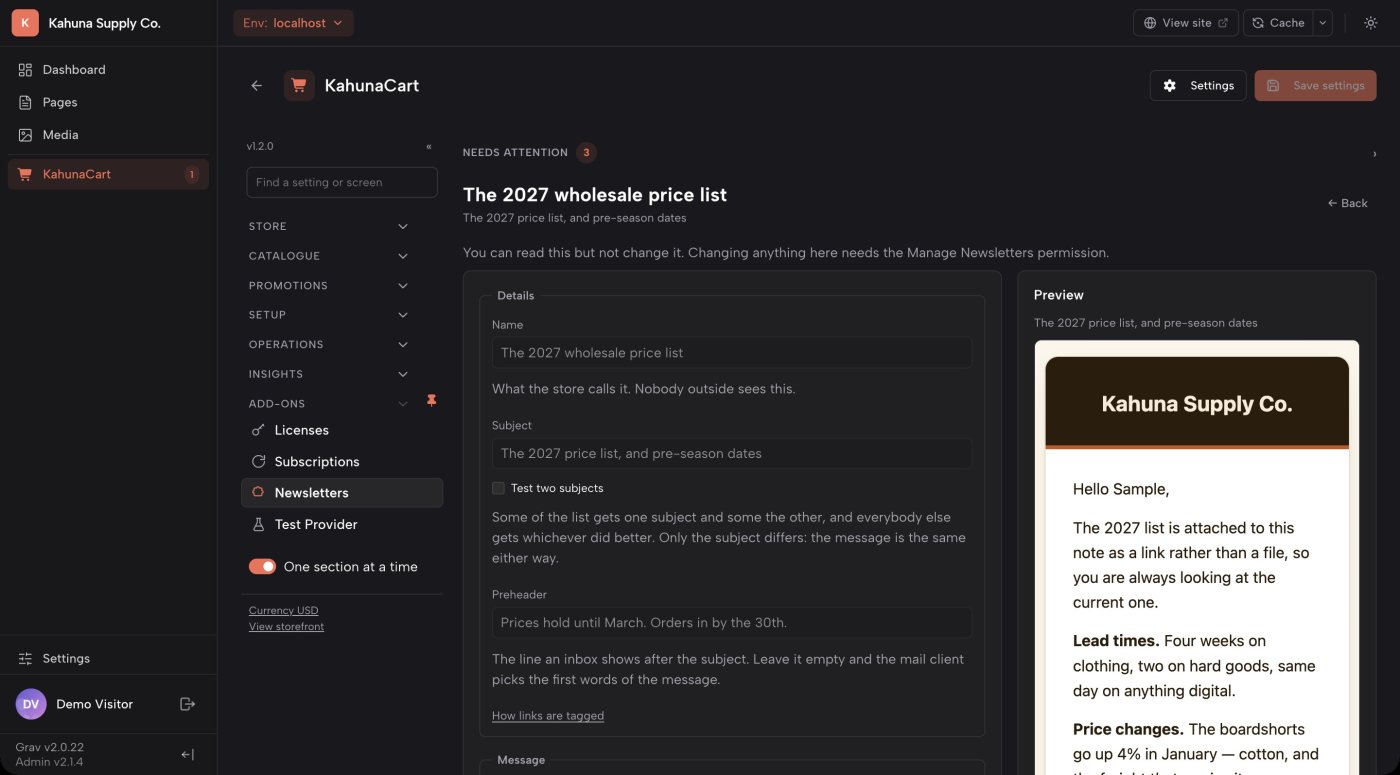
Compose an email in Markdown and check it in the live preview. Choose an audience, send yourself a test, then send the campaign or schedule it for later.
- Use a branded store layout or a simpler layout for a more personal email.
- Personalize messages with supported fields such as first name, order count and coupon code.
- Test two subject lines with part of your audience, then send the winner to the remaining subscribers.
- Add campaign tracking parameters to store links, and pause or resume sending when needed.
- Sending rate
- The default limit is 60 messages per minute. Adjust the sending settings to suit your mail provider.
- Delivery problems
- Failed messages record the provider's error. A campaign pauses and raises an alert after 25 consecutive failures.
- Campaign results
- Review sends, deliveries, opens, clicks, bounces, complaints, unsubscribes and failures.
- Delivery confirmation
- Without provider delivery reports, the results show messages accepted for sending. Connected delivery reports confirm which messages were delivered.
Automations
Send follow-up emails at the right time
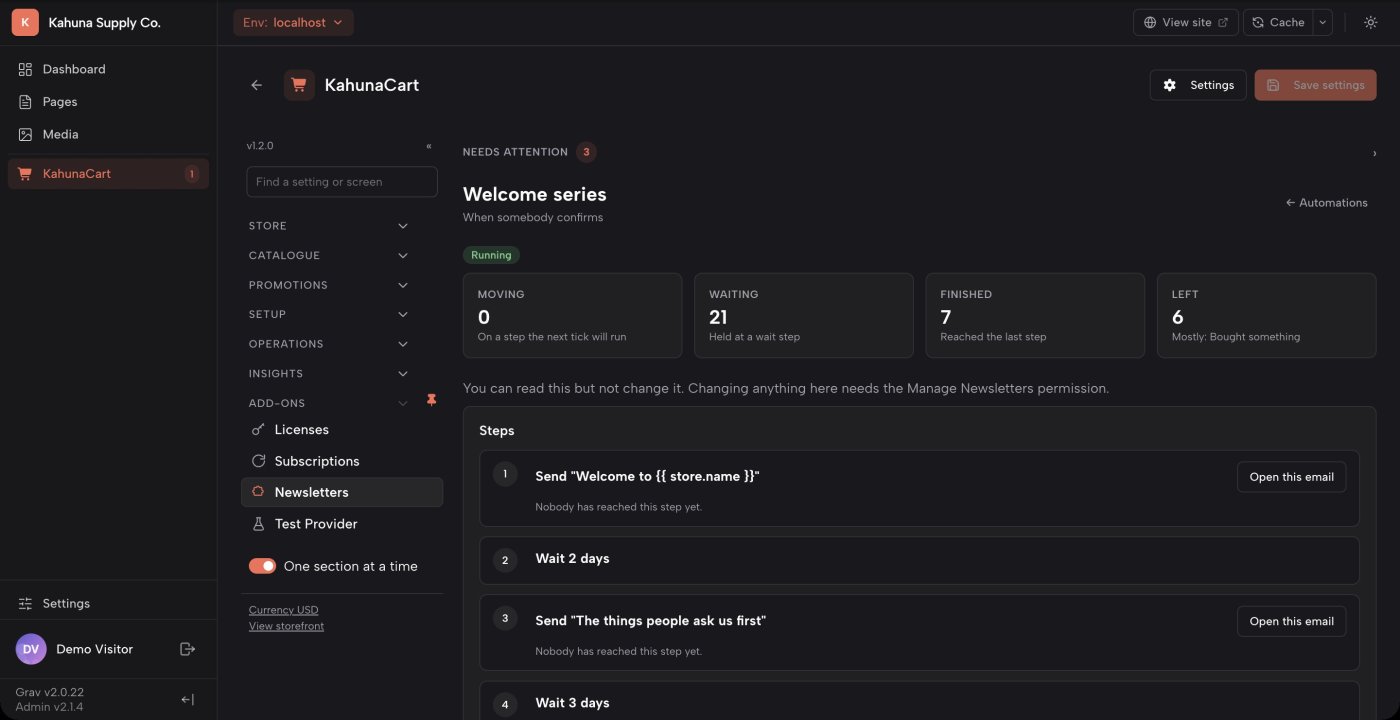
Create a welcome series, follow up after a purchase, or invite inactive customers back. Choose what starts the sequence, write the emails and set the delay between each step.
- Start a sequence when someone joins a list, completes an order, buys a particular product or changes their subscription.
- Add email and wait steps, update tags or list membership, and branch based on opens or clicks.
- Schedule a delay or choose a weekday and time in your store's timezone.
- Enable Exit on purchase to stop the remaining emails in a sequence when the customer buys. This is useful for promotional reminders.
- See how many subscribers are active, waiting, finished or have left the sequence.
- Starting a sequence
- Subscribers must be eligible to receive email, belong to the selected list and match any segment conditions.
- Unsubscribes
- Eligibility is checked before every step. Subscribers stop receiving the sequence if they unsubscribe, bounce, complain or are suppressed.
- Personal discounts
- An email step can generate an individual discount code from a coupon group.
- Editing a sequence
- Changes apply to subscribers still in the sequence from their current step. Completed steps are not restarted.
Audience
Group subscribers by interests and purchase history
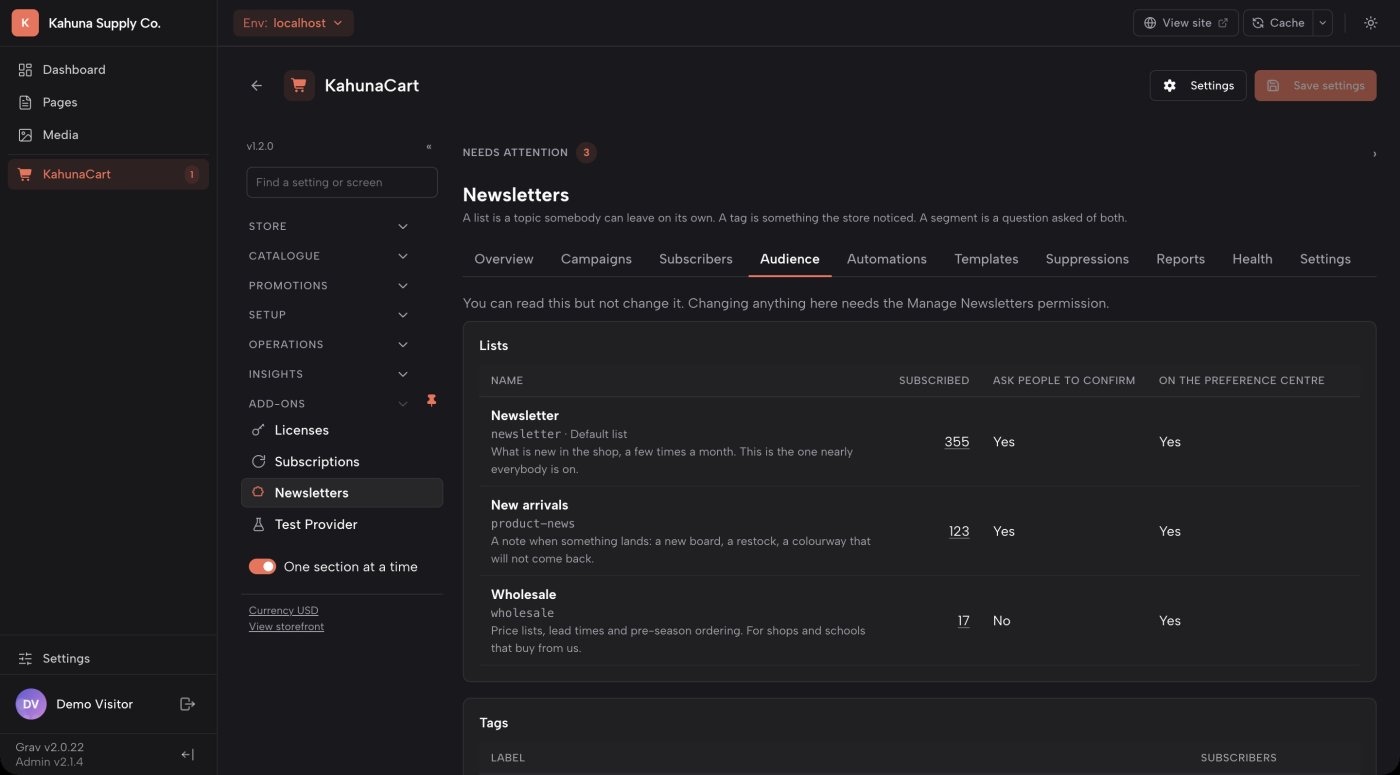
Use lists for topics people subscribe to, tags to organize contacts, and segments to select people who meet your criteria. Segments use current store data, so they reflect changes in customer activity.
- Select subscribers by products purchased, total spending, recent orders or campaign engagement.
- Combine conditions to match all, any or none of your criteria.
- Preview the matching subscriber count and sample contacts as you build a segment.
- Let subscribers choose their preferred lists in the preference center without unsubscribing from everything.
- Purchase history
- Purchase-based segments use completed orders that have not been refunded.
- Eligible recipients
- Segments exclude unsubscribed, unconfirmed and suppressed addresses.
- Signup forms
- Add a signup form with Twig, the Grav Form plugin or the JSON API. Each method records consent.
- Email preferences
- Subscribers can manage list membership through their preference page. Signed-in customers also have an Email preferences tab.
Docs Subscribers, lists and tags →Segments →Settings reference →
Reports
Understand how your emails perform
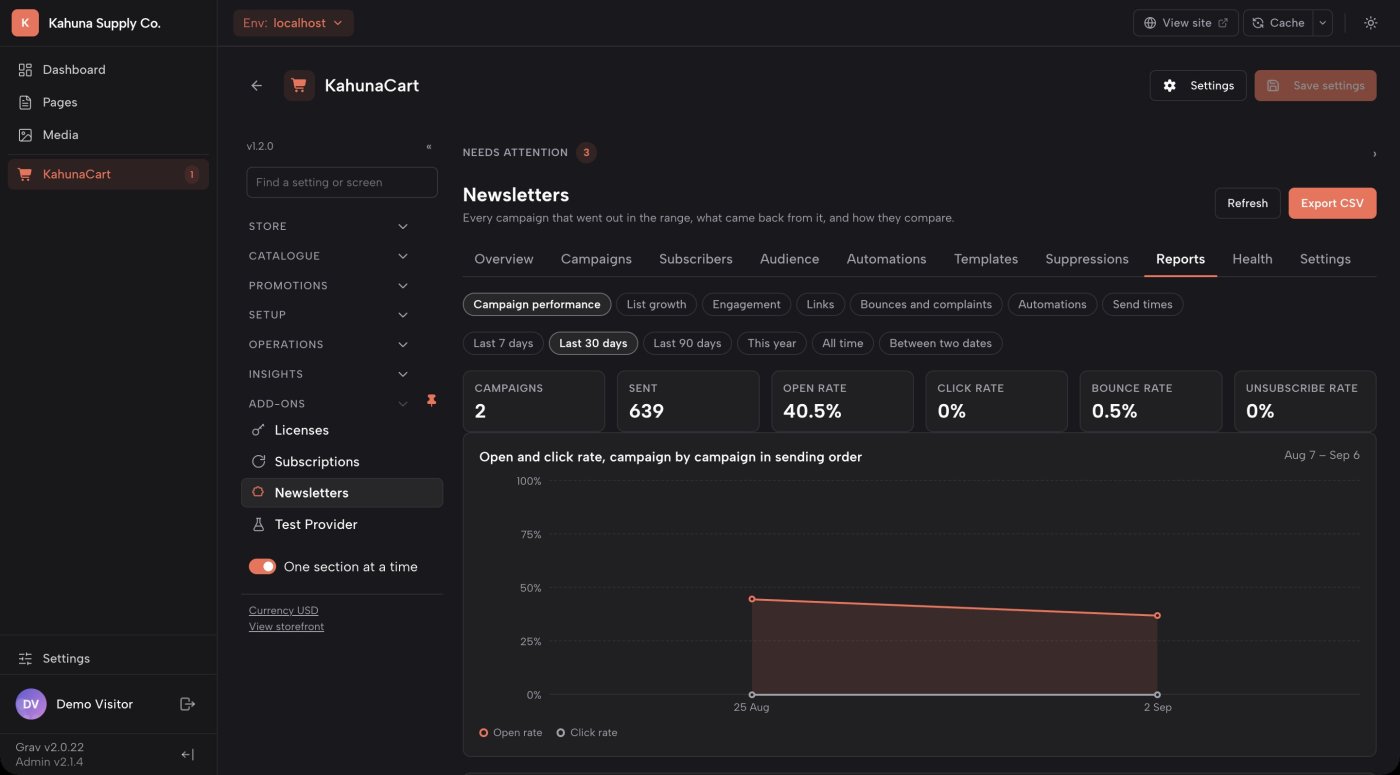
Review campaign performance, subscriber growth and engagement over a date range you choose. Reports include totals, charts and tables, with CSV exports for further analysis.
- Compare campaigns using send, open and click counts alongside their rates.
- Find subscribers who have engaged recently and those who have become inactive.
- Review link activity, automation results, bounces and complaints.
- See when subscribers open emails by hour and day of the week.
- Sending health
- Check domain authentication, email configuration, unsubscribe support and recent bounce and complaint rates.
- Suggested fixes
- Health checks explain the problem and what to change. You can also run the checks from the command line.
- Delivery integrations
- Receive reports from SMTP2GO, Amazon SES, SendGrid, Postmark, Mailgun, MailerSend and Resend through the corresponding provider plugins.
- Report links
- Report filters are included in the page address, so you can bookmark a view or share it with another administrator.
Import subscribers
Bring your existing subscribers into KahunaCart
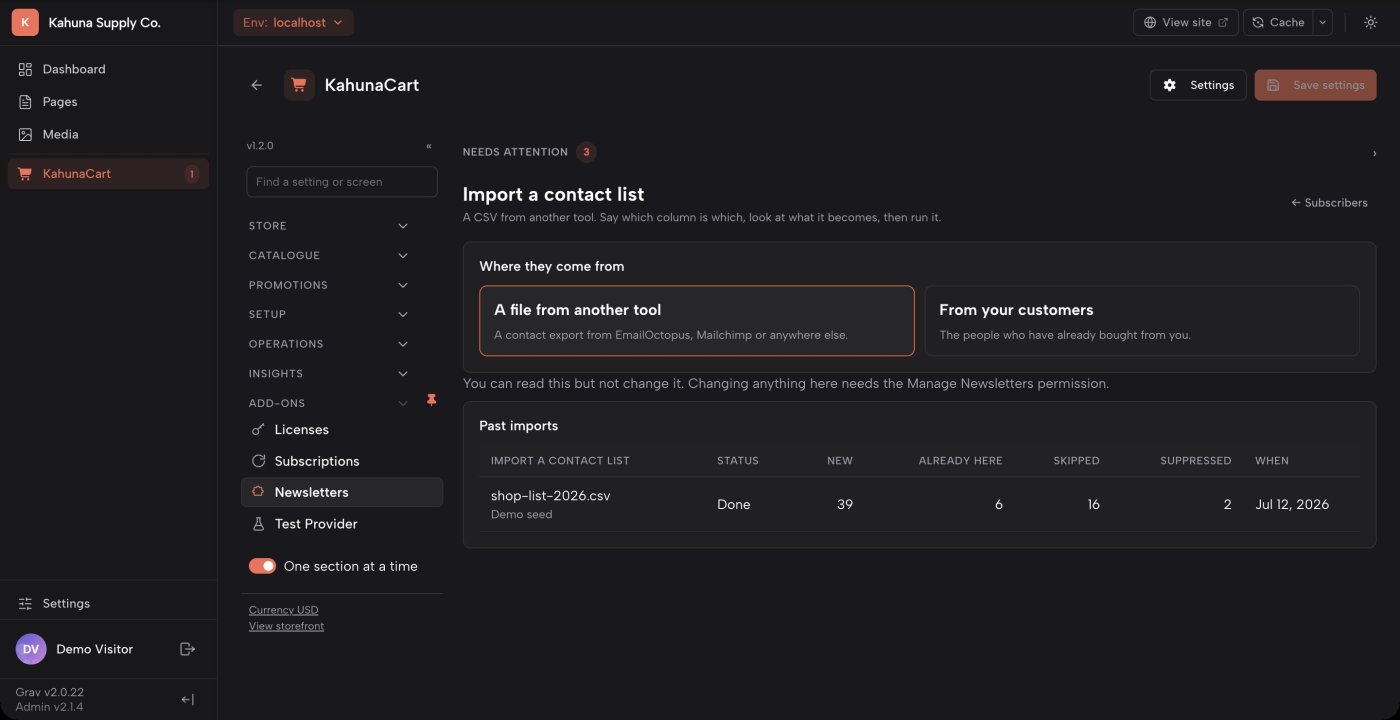
Import contacts from a CSV file or select customers from your store. Preview the results before importing, and choose whether to send an invitation or add contacts who have already agreed to receive your emails.
- Filter store customers by purchase history, product, category, customer group, recent orders or account status.
- Review how many contacts will be added, are already subscribed or cannot be imported.
- Use Invite them to request confirmation. Use Add them as subscribed when you already have their permission.
- Map CSV columns to subscriber fields. EmailOctopus exports have a preset mapping.
- Imports preserve existing subscriptions and do not reactivate bounced, complained or suppressed addresses.
- Checkout signup
- Add an unchecked newsletter opt-in box to checkout. Customize its label and position, or turn it off.
- CSV fields
- Import email addresses, names, tags, subscription status, signup dates and language preferences.
- Import progress
- Review counts for new, existing, skipped and suppressed contacts, with reasons for skipped rows.
- Export
- Export subscribers using the current list filters. Unsubscribed list memberships are included so their status can be preserved when moving data.
Questions
Common questions
Can I use this instead of a hosted email marketing tool?
Newsletters provides lists, segments, campaigns, automations and reports inside KahunaCart. Purchase history is available for audience selection without syncing it to another marketing platform. You still need an email provider to send the messages.
Is there a charge per subscriber or email?
The add-on has no per-subscriber or per-message charge. It is a one-time purchase, with updates covered by your site's single renewal. Your email provider may charge for delivery. See the store for the add-on price.
What do I need to send campaigns?
You need KahunaCart 1.2.0 or later, the Grav Email plugin configured to send mail, and the store scheduler running every minute. Set a From address supported by your email provider. The Settings screen shows whether sending is ready.
Can I import my existing list?
Yes. Import a CSV and map its columns, or select customers already in your store. You can invite customers to subscribe or import them as subscribed if you already have permission. Imports respect existing unsubscribe and suppression records.
How can I check for delivery problems?
The Health screen checks domain authentication, email settings and recent sending results, with suggested fixes. Connect your provider's delivery reports to track deliveries, bounces and complaints. These checks help diagnose problems; they cannot guarantee inbox placement.
What happens when I erase a customer?
Their newsletter subscriber record, list memberships, tags and individual sending and click records are deleted. A suppression record containing a hash of the email address remains to prevent accidental future mailings.
Manage email marketing in KahunaCart.
Buy Newsletters once for your site. Keep your subscriber data and campaign reports in your own store, with updates covered by your site renewal.
Buy in the store