
Bookings
Take bookings through your shop
Sell appointments and classes alongside your products. Bookings manages staff availability, shared rooms and equipment, with online payment through your existing checkout. Your customers choose a time, and your team manages the day from the diary or front desk.
The demo has three businesses. Hollis & Fern, a salon, and Ironbark, an axe-throwing range, run on Bookings alone. Saltmeadow, a beach house let by the night, runs on Bookings + Rentals.
Version 1.1.13 Released
What your customers see
Let customers book online
Set a product's type to Booking to add a calendar to its page. Customers see available days and times, choose a staff member where you allow it, and pay through your existing checkout.
- Picking a time holds it for fifteen minutes while the customer completes their booking.
- Take payment online or on the day. Free bookings and payment on arrival skip the cart.
- Times appear in the customer’s timezone. The available appointments are the same wherever they book from.
- The calendar fits inside your existing product form and uses your theme’s styling.
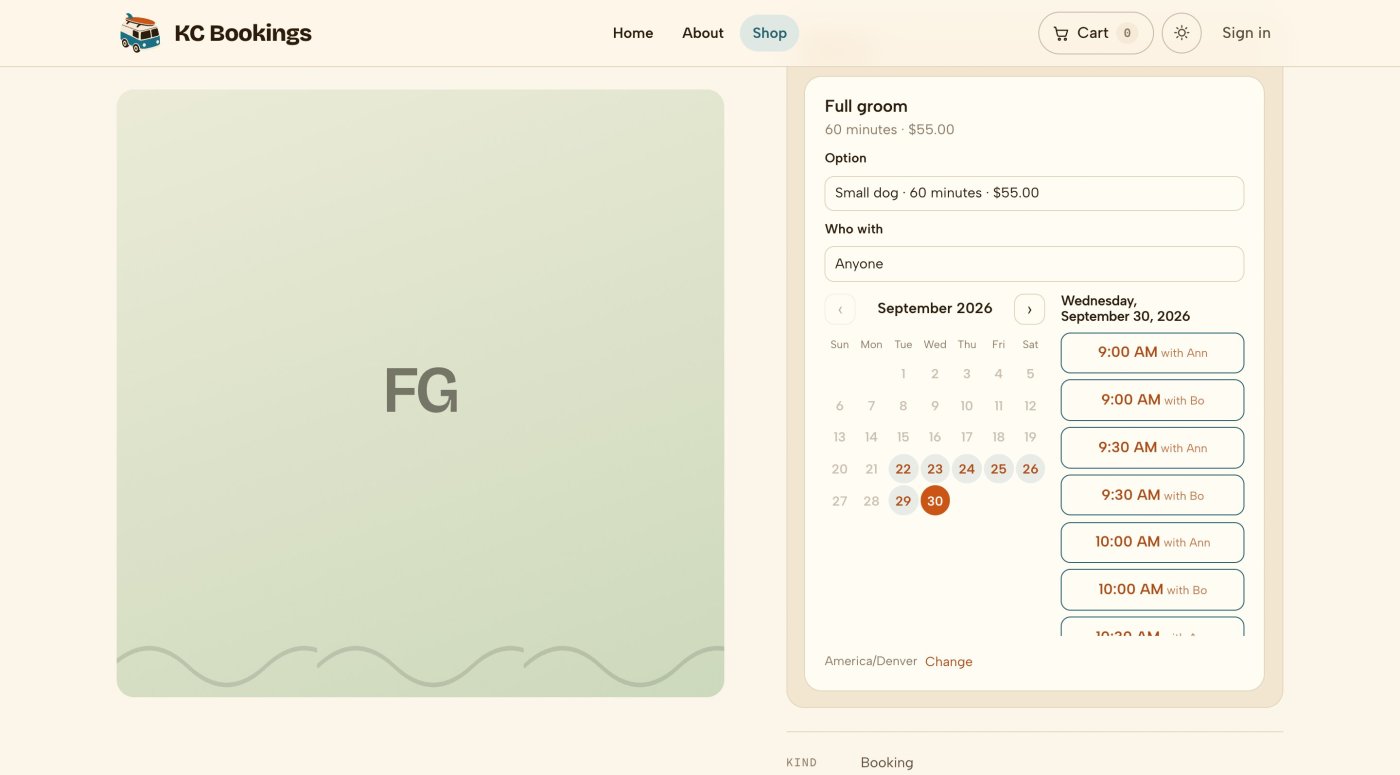
- Uses your product catalogue
- Set a product’s type to Booking. Keep its name, price, options, images, category, tax class and purchase restrictions in the usual product editor.
- One receipt
- Paid bookings appear on the order receipt. You can turn off the separate calendar invitation email.
- Embed a booking calendar
- Use a shortcode or Twig call to place a calendar on another page. Limit it to one person or product option if needed.
- Customer self-service
- Booking messages include a link where customers can reschedule or cancel up to your cutoff.
People and places
Book the resources each service needs
Manage staff, rooms and equipment in one place. A groom can require both a groomer and a tub, so the shop only offers times when both are free.
- Manage ten interchangeable range lanes as one record with a capacity of ten.
- Reuse a named schedule across staff and equipment. Change its Saturday hours once to update everyone who uses it.
- Block whole days off in each person’s timezone.
- Disable staff who leave to stop new bookings while keeping their booking history.
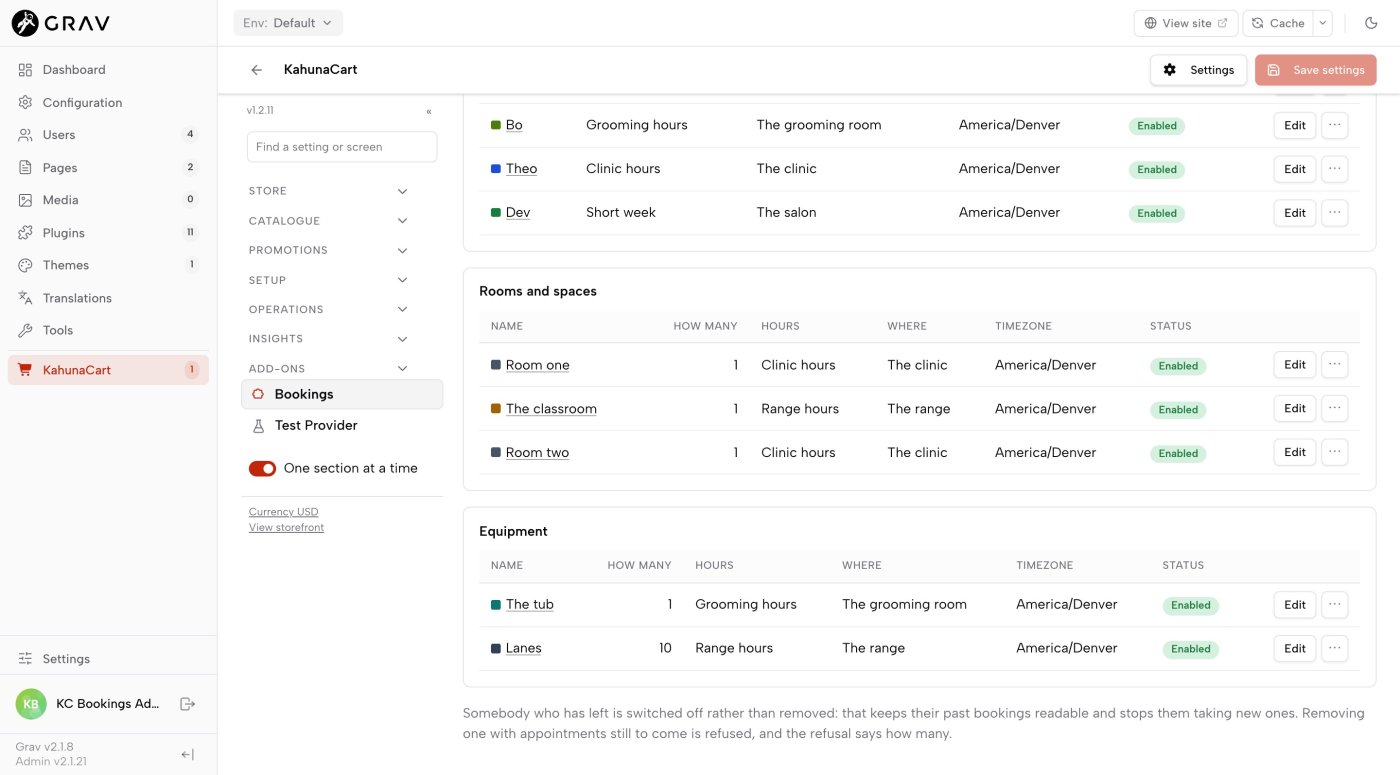
- Staff and resources
- Book people, rooms and equipment through the same availability system.
- Shared opening hours
- Availability uses the resource’s own hours, then its location’s, then the service’s fallback hours. Without any of these, it is closed.
- Calendar subscriptions
- Staff can subscribe to their appointments on their phones. Updates and cancellations follow when the calendar app refreshes. You control the details shared.
- Import busy times
- Connect an outside calendar to block times already taken. A failed calendar fetch does not close the diary.
Service requirements
Set up each service
Choose how long a service takes and which people or equipment it needs. Let customers pick from a pool of staff, or assign the first available resource automatically. A time is offered only when every requirement is available.
- Automatic assignment uses the first available resource in your pool, in the order you set.
- Give product options their own duration and price, such as sixty minutes for a small dog and ninety for a large one.
- Reserve setup and clean-up time around each appointment.
- A service can use its own availability without a separate list of resources, which suits a one-person business.
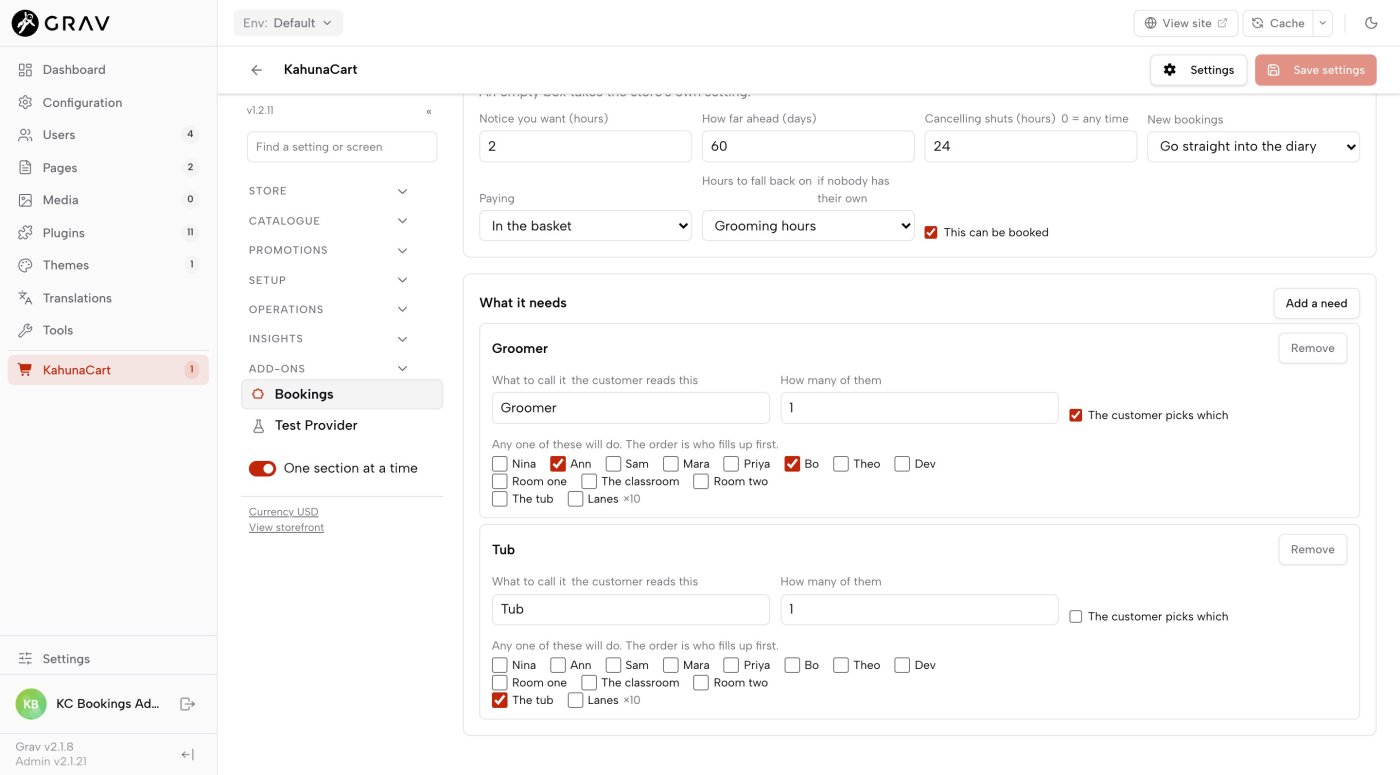
- Booking rules
- Set the duration, start intervals, setup and clean-up buffers, notice period, booking window and deadline for changes.
- Approval requests
- Require approval for services that need a conversation first. The time is held while you review the request, and you receive a notification.
- Party size and capacity
- Party size is the number of people on one booking. Capacity is the number of bookings at once: ten lanes can take ten bookings, regardless of each group’s size.
- Store defaults
- Leave an optional field empty to use the store default. Entering zero overrides that default with zero.
The owner's view
See your week at a glance
The diary shows a row for each person, room and piece of equipment, with working hours and time off behind the bookings. Pending requests have a dashed edge. Booking conflicts appear in red in a separate Holding nothing row.
- Filter by person, service or location. The counts update with your filters.
- Troubleshoot explains unavailable times, with reasons such as Tub: booked or Trainer: teaching Tuesday bootcamp.
- Find bookings by reference, filter by status and export the results as a CSV.
- Follow the order link to view payment details.
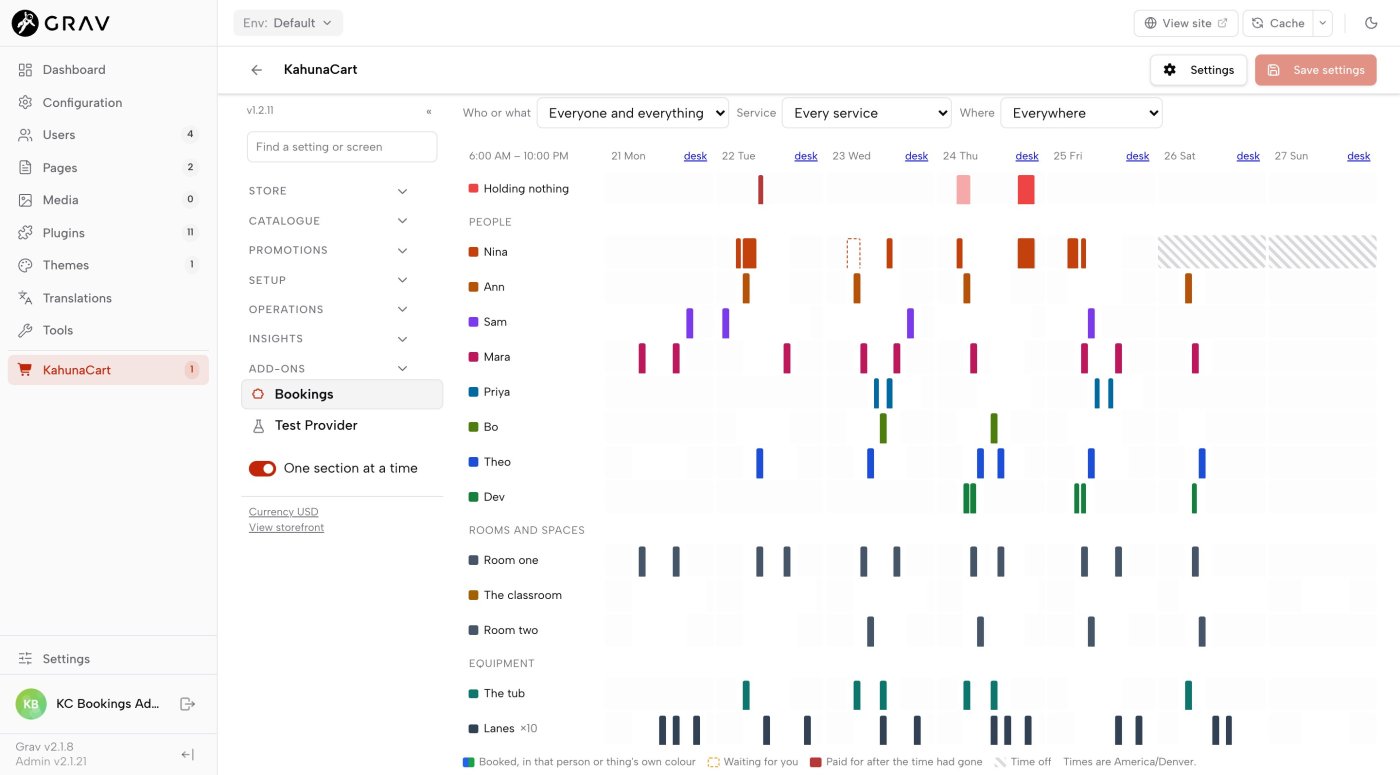
- One admin section
- Nine screens cover the overview, booking list, class registers, four setup areas, troubleshooting and settings.
- Dashboard alerts
- See bookings awaiting approval and bookings in conflict. Each alert opens the relevant filtered list.
- Order and customer records
- View the appointment on its order and booking history on the customer record. Payment details remain on the order.
- Configurable messages
- Manage eleven customer messages and five merchant notifications. Defaults include reminders a day and an hour before the booking, a thank-you afterwards and an optional calendar invitation.
Classes and courses
Run classes and manage waiting lists
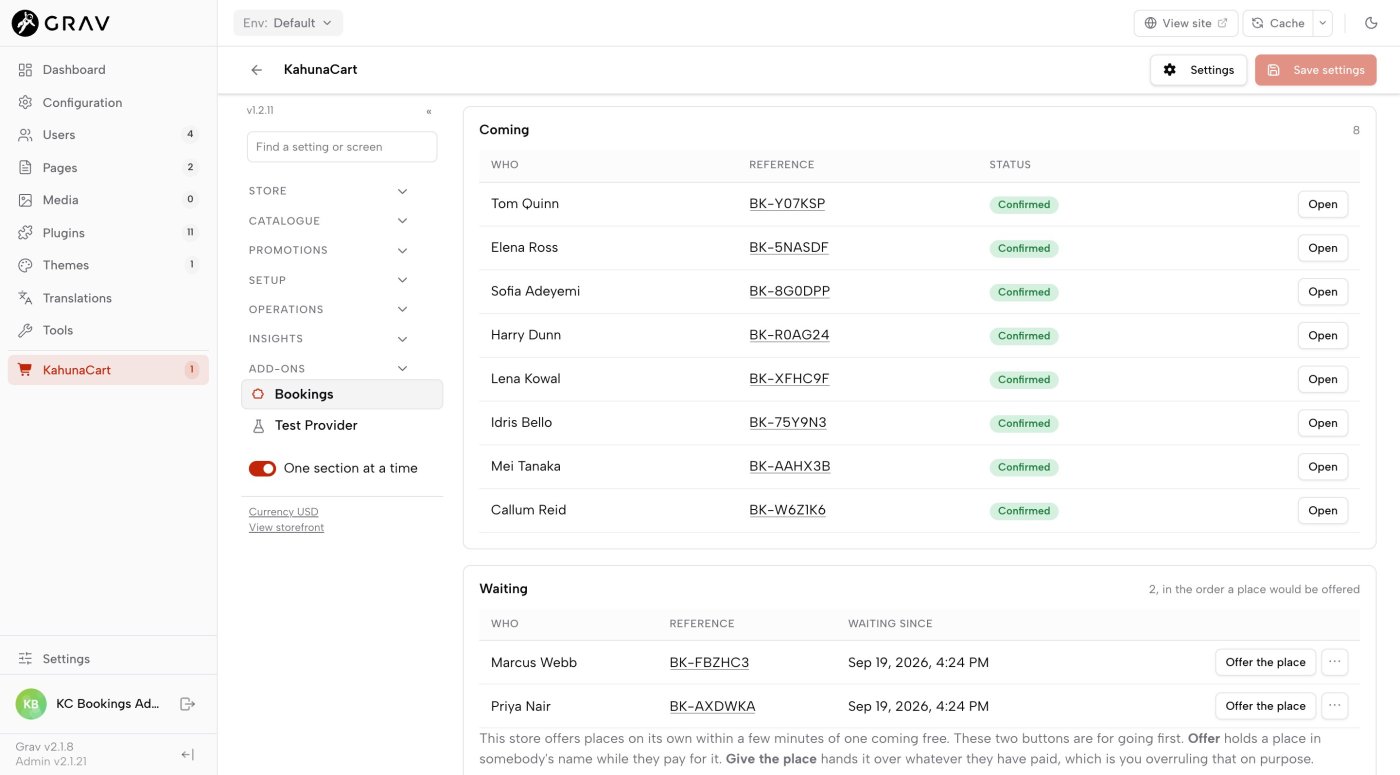
Set the dates for a one-off class, a recurring session or a course. Sell each date separately or offer the remaining course dates in one purchase. Each date has an attendance register and can take a waiting list when full.
- Recurring classes keep their local start time when the clocks change.
- The class reserves its trainer and room as soon as you schedule it, even before anyone registers.
- When a place opens on a paid class, it is offered to the next customer and held while they pay.
- Cancel a date to notify everyone and see the orders that need attention. You decide which refunds to issue.
- Single dates or courses
- Sell one date or every remaining date under one course number. A customer joining in week three of an eight-week course books the six dates left.
- A list of available dates
- The class page shows its dates and remaining places. Customers enter their party size before choosing.
- Free waiting lists
- Joining a waiting list reserves no place and takes no payment, including for paid classes.
- An embeddable timetable
- Use a shortcode to show upcoming sessions and available places on any page. The timetable also works without JavaScript.
The front desk
Manage the day from the front desk
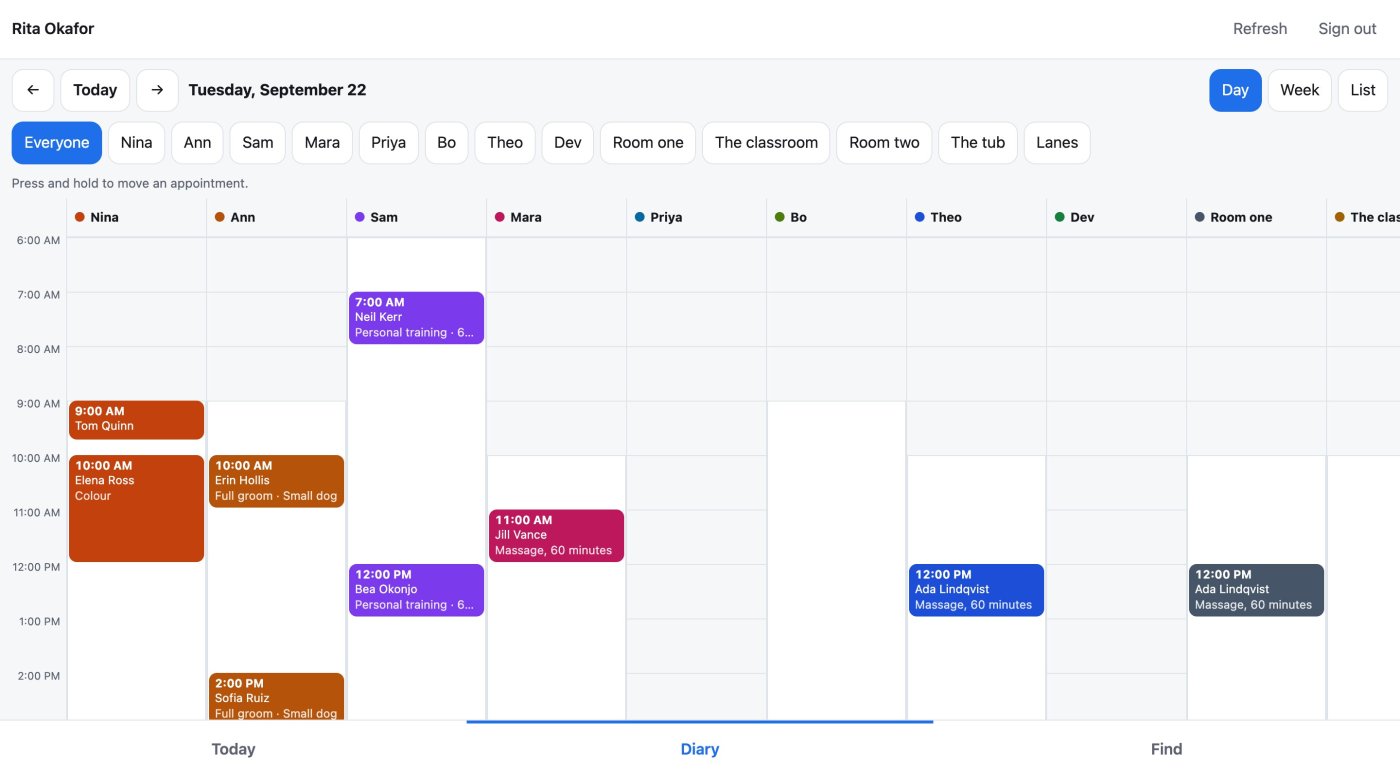
Give staff a tablet view at the counter, using a site account with front desk access. Press and hold to move an appointment, tap to check someone in, or use New booking for a walk-in.
- Give reception the whole diary or limit a staff member to their own column.
- See a short payment summary, such as Paid online, Deposit paid, $25.00 to pay today, Pay today: $80.00, or Free.
- Each action records who made the change. The Let the customer know option is on by default.
- Add the desk to the tablet’s home screen for an app-style view. Desk pages are never indexed or cached.
- Limited access
- Dedicated front desk routes let staff manage appointments without access to orders, payment providers or refunds.
- Two access levels
- Give reception the whole diary or a staff member their own column. Neither permission opens the admin; owners with booking management access can already use the desk.
- Appointment actions
- Check in, complete, mark a no-show, reschedule, cancel, approve or reject a booking. The main action is prominent; the others sit under More.
- Collect payment separately
- The desk shows what to collect. Staff take payment using your existing counter payment method; the desk does not process it.
Questions
Common questions
What do I need to run Bookings?
Grav 2, KahunaCart 1.2.11 or later, and a running store scheduler for receipts and reminders. No separate booking service or calendar account is required.
What can customers book?
Appointments, classes, rooms and shared equipment. The docs include salon, grooming, personal training, massage and shooting range examples, each with a seed command that creates a working setup.
How do customers pay?
Through your existing cart, checkout and payment provider. You can also choose payment on the day, which creates the booking without a cart or order. Free bookings work the same way.
Can I take a deposit?
Yes, from an existing order. Open it and press Take a deposit, then collect the balance through its pay link. Appointment and class checkout collects the full price. See taking payment.
Can staff use it without an admin login?
Yes. Give staff a site account with front desk permission and API access. They can manage the diary at /desk without access to admin screens.
Does it sync with Google Calendar?
Yes. Staff can subscribe to a booking feed, and you can import an outside calendar to block busy times. Calendar apps control their own refresh schedules, so updates may be delayed. Use the booking diary for current availability.
What are the limitations?
The front desk does not process counter payments, and pricing is per booking rather than per person. For nightly stays, add Rentals.
How much does it cost?
Bookings costs $149 as a one-time purchase for your site. Updates are covered by your site’s single renewal. If you also need nightly rentals, choose Bookings + Rentals for $249 on the Rentals store page. If you already own Bookings, Rentals alone costs $149.
Bring bookings into your shop
Buy Bookings once for your site and manage appointments alongside your products, orders and customers. For nightly stays too, choose Bookings + Rentals for $249.
Buy in the store