
Subscriptions
Sell subscriptions from your own store
Offer recurring plans with automatic payments or emailed renewal invoices. Manage plans, trials and renewals in KahunaCart, with an order and payment history for every billing period. The screenshots below show the demo store; its read-only admin includes sign-in details on the login page.
Version 1.1.10 Released
Plans
Turn a product into a subscription plan
Choose a product variant and set how often it renews. The plan uses your existing catalog information, including prices, images and tax settings. To let customers pay monthly, quarterly or yearly, add each as a billing option on the same variant, and they all sell from its one stock count.
- Set billing intervals in days, weeks, months or years.
- Offer an introductory price with a separate variant for subsequent renewals.
- Stop selling a plan while allowing existing subscriptions to continue.
- Existing subscriptions renew at the price they signed up at when you change the product price.
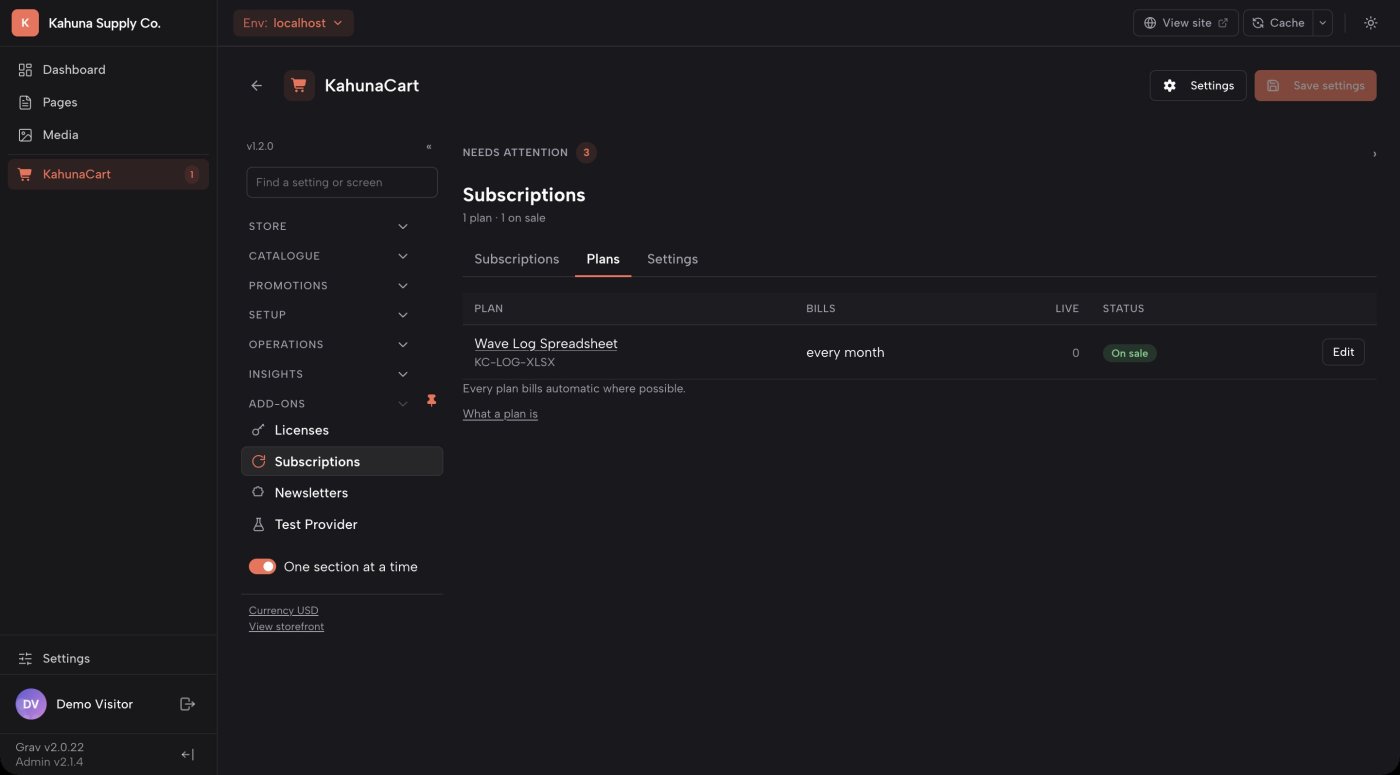
- Plan settings
- Choose the product variant, the billing interval, an optional price and label, trial length, billing mode, renewal variant and grace period.
- Flexible intervals
- Bill every month, every three months, once a year, or at another interval of up to 52 days, weeks, months or years.
- Calendar billing
- Monthly and annual billing handles shorter months automatically. A January 31 start renews at the end of February.
- Limited places
- Every billing option on a variant shares its stock. Choose per plan whether a place stays used when a subscription ends or goes back to stock for the next customer.
Billing, trials and grace periods
Set the payment terms for each plan
Choose automatic billing, invoice billing, or automatic billing when the payment provider supports it. Add a trial period and decide how long invoice subscribers have to pay after their current period ends.
- Automatic billing uses a supported payment provider to collect recurring payments.
- Invoice billing emails a payment link for each renewal and works with every provider.
- With automatic billing, a free trial delays the first charge. Invoice billing charges upfront and adds the trial days to the first paid period.
- A grace period keeps an invoice subscription active while the customer has time to pay.
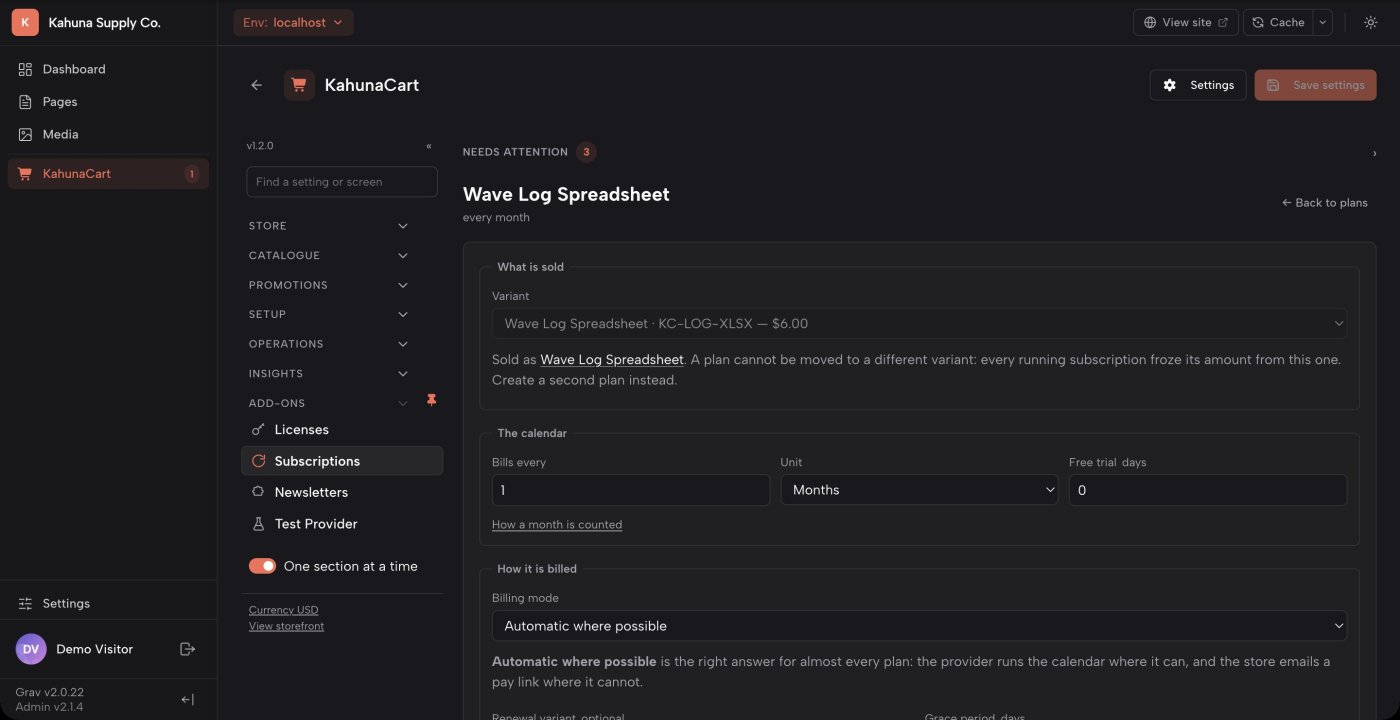
- Billing modes
- Choose Automatic, Invoice or Automatic where possible. The last option falls back to invoices when the customer's provider does not support recurring payments.
- Trial length
- Set a trial of up to 365 days. How the trial is applied depends on the billing mode.
- Invoice reminders
- The default reminders go out 14 days before renewal, three days before, and on the renewal date. Each links to the same renewal order.
- Grace period
- The default is seven days, with a separate setting available for each plan. If payment does not arrive before grace ends, the subscription expires.
The storefront
Customers subscribe through your usual checkout
Subscription products use the same product pages and checkout as the rest of your catalog. Customers see the price, billing interval and trial terms before they pay.
- Each subscription is purchased on its own, in a cart containing a single plan.
- The cart and checkout explain the payment terms, including any trial period.
- Guests can manage their subscription through the link in their email. Account holders also have a Subscriptions tab.
- Customers can review renewal orders, pay an invoice or cancel at the end of their current period.
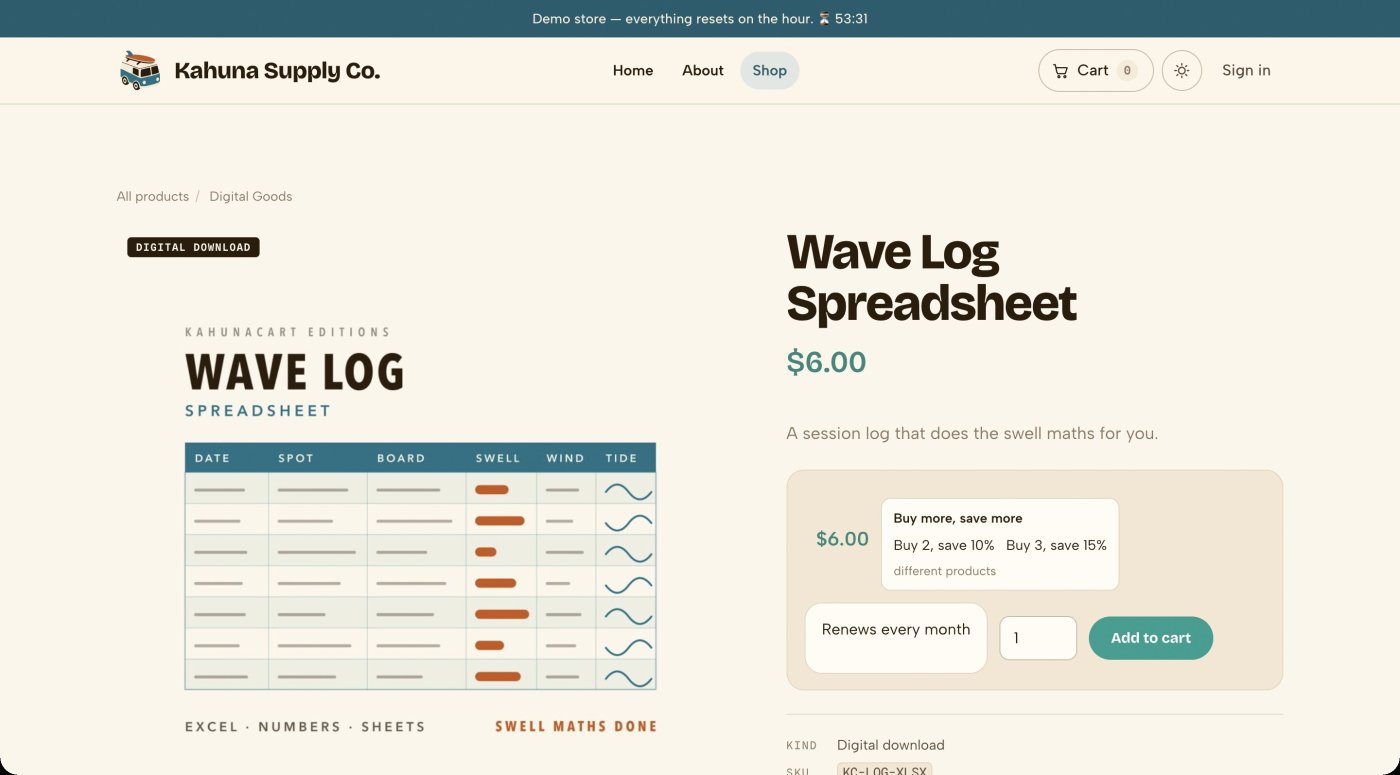
- Automatic payments
- Stripe, including Managed Payments, and Polar support provider-managed recurring billing.
- Invoice payments
- Customers pay each renewal through your normal payment flow. This also supports methods such as bank transfer.
- Subscription page
- Customers can see their current billing period, next renewal, orders and subscription history in one place.
- Cancellation
- Customers confirm cancellation before it takes effect. Access continues for the period they have already paid for.
Member access
Keep pages and articles for your subscribers
A plan can put its subscribers in a customer group while their subscription is live. That group opens the pages you choose, and on an article you can show everyone the opening and keep the rest for subscribers.
- Customer group while subscribed. Pick a group on any plan, every billing option included. Subscribers are in it while they are on a trial, active or past due. Once a subscription stops being live they are out of it on their next click.
- Lock a whole page. Ask for the group in a page's
access:header and only subscribers can open it. A Downloads Pro page works the same way, and its download links close with it. - Articles with a teaser. Mark a page with
paywall:and cut it with a===line. Everyone reads the opening, and anyone who isn't a subscriber sees a subscribe panel instead of the rest. The rest is never sent to them, not in the page, not in the feed and not in the search results. - A panel that fills itself. It shows a button and a price for every plan that grants the group. Put a plan on sale or take it off and the panel follows, with nothing to edit on the article.
- Free articles a month. Let visitors read a few articles in full before the teaser applies. It's off until you turn it on.
- Continue reading. A new subscriber's receipt links back to the article they came from.
- Who is in the group
- Subscribers on a trial, active or past due. Paused, cancelled and ended subscriptions are out, and a customer who cancels at the end of their period keeps access until that period runs out.
- Nothing stored
- The group is worked out from the subscription on every page load, so a late webhook or a status changed by hand cannot leave anybody in it after they stop paying.
- Signed-in customers
- A subscription bought as a guest has no account behind it, so it grants no group. The customer signs in to their store account to read.
- Needs
- KahunaCart 1.3.8 and Subscriptions 1.1.2 for articles with a teaser. KahunaCart 1.3.5 and Subscriptions 1.1.1 are enough to lock a whole page.
Docs Access for subscribers →Articles with a teaser →Help: put articles behind a subscription →
The admin
See who is subscribed and which payments need attention
The Subscriptions screen summarizes recurring revenue and shows active, past-due and paused subscriptions. Use the list to find a customer or review the subscriptions on a particular plan.
- Filter by status, plan, billing mode or payment provider, and search by customer email.
- View monthly recurring revenue with its annual equivalent. Different currencies are reported separately.
- Give staff permission to view subscriptions, or allow them to make changes as well.
- Configure reminders, grace periods and subscription emails in the Settings tab.
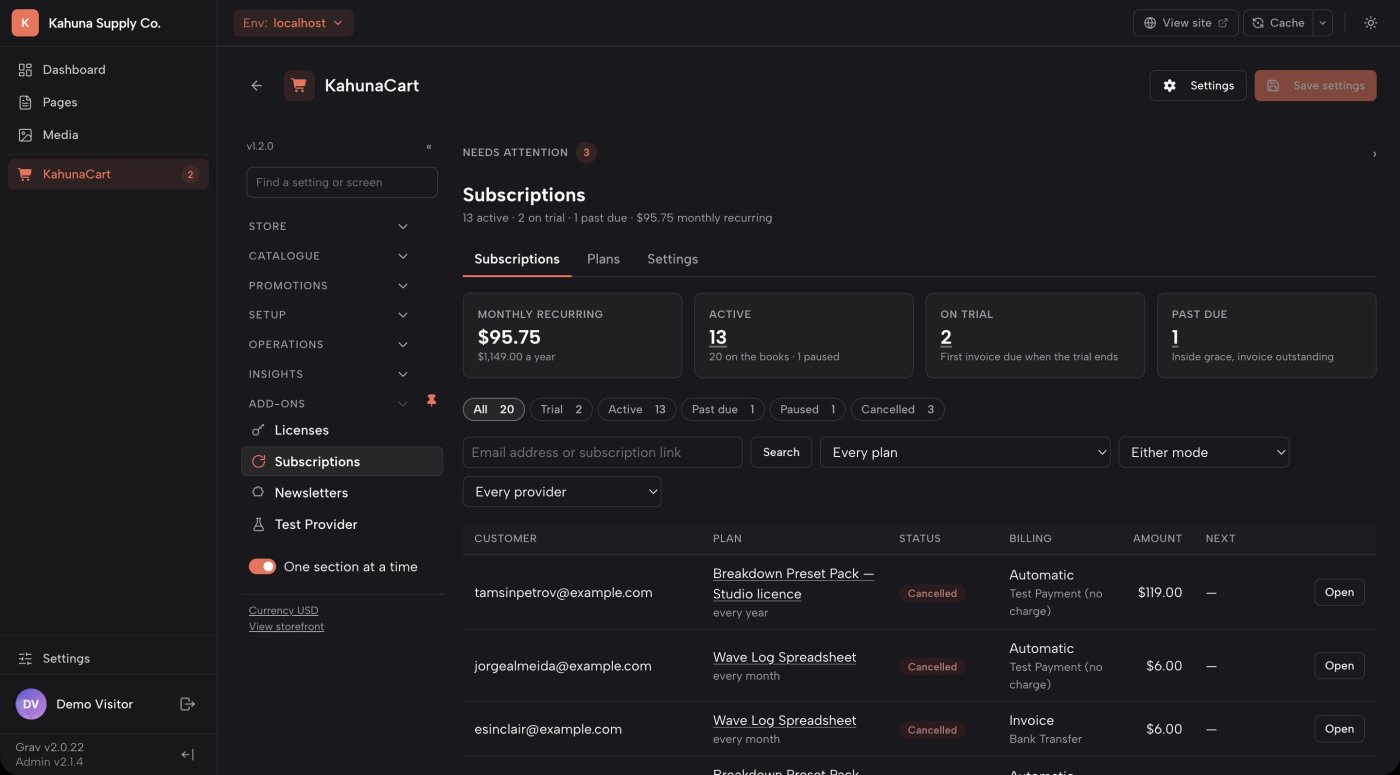
- Revenue reporting
- Recurring revenue includes active and past-due subscriptions. Trials are reported separately.
- Monthly equivalents
- A $120 annual subscription contributes $10 to monthly recurring revenue. A $30 quarterly subscription contributes the same amount.
- Past-due payments
- A past-due subscription has an unpaid invoice but is still within its grace period.
- List settings
- Choose how many subscriptions appear per page, from 10 to 200. The default is 50.
One subscription
Review the full history of a subscription
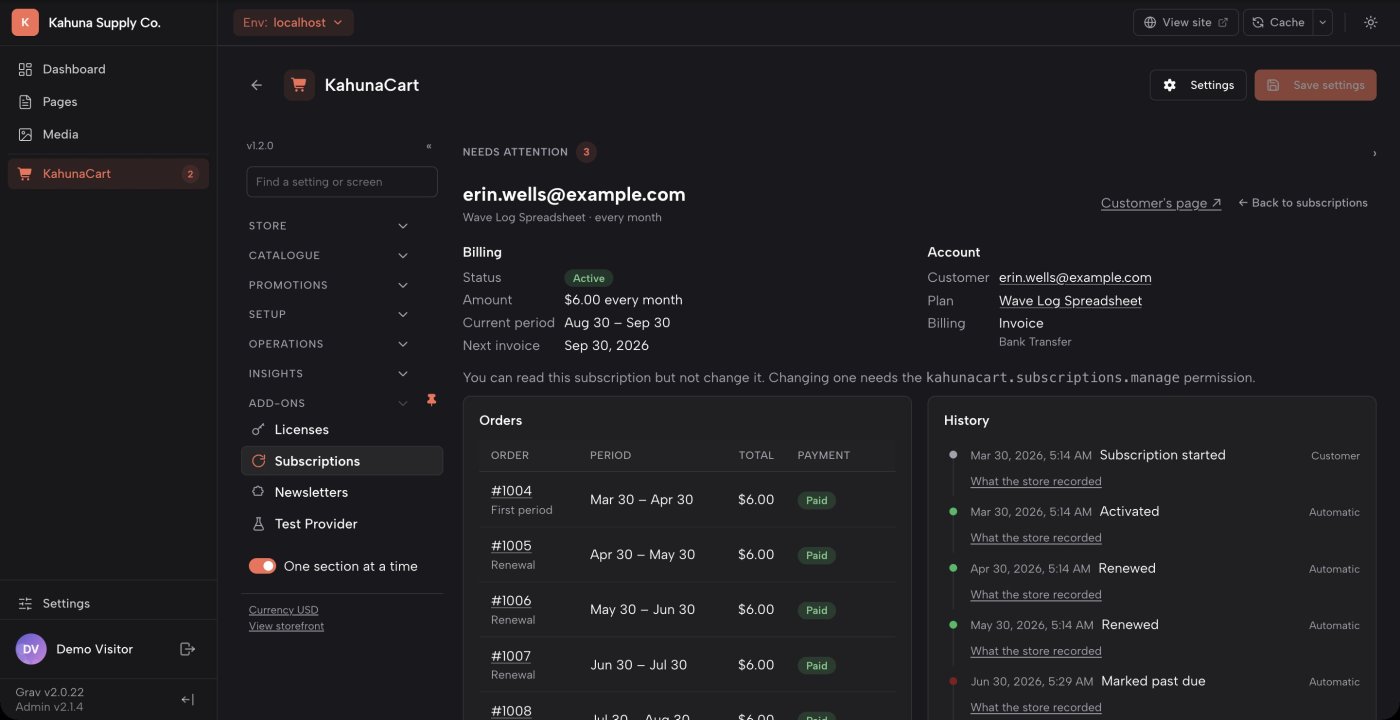
Each subscription has a record of its billing periods, renewal orders, payments and changes. Open it to answer a customer question or adjust their subscription.
- Cancel, pause, resume or extend a subscription when its current status allows the action.
- Resend an invoice payment link or record a renewal payment received by bank transfer.
- See when each change happened and whether it came from the customer, an administrator, the provider or scheduled billing.
- If a change cannot be confirmed by the payment provider, the admin displays a warning so you can follow up.
- Renewal orders
- Every billing period creates an order with receipts, invoices, tax and payment records, using the same order tools as other purchases.
- Subscription emails
- Configure renewal reminders, invoice-due notices, failed-payment messages and end-of-subscription emails.
- Refunds
- Refunding the latest renewal rolls back its billing period. Refunding the initial order cancels the subscription; refunding an older period leaves current dates unchanged.
- License renewals
- With License Keys configured, renewals extend the existing key. Choose whether an ended subscription leaves the license active, suspends it or revokes it.
Questions
Common questions
Do I need Stripe to sell subscriptions?
No. Stripe and Polar support automatic recurring payments. Other providers can use invoice billing: KahunaCart creates a renewal order and emails the customer a payment link. This works with PayPal, bank transfer and your other payment methods.
Does every renewal create an order?
Yes. Every billing period has an order with its own receipt, invoice, tax and payment record. You can review and refund renewal orders using the same tools as other orders.
What happens if I stop renewing the add-on?
Your installed version keeps working, including existing subscriptions and new sales. The site renewal covers software updates for KahunaCart and all your add-ons. See the store for details.
Can customers subscribe without an account?
Yes. Guests receive an email link to their subscription page, where they can review orders and manage the subscription. Customers with an account can also access it from the Subscriptions tab.
What does invoice billing need?
Your store scheduler must run bin/plugin kahunacart work to process renewals and reminders. Email delivery must be configured, and system.custom_base_url must contain your public store address so emailed payment links work.
Can a subscription renew a software license?
Yes. With the License Keys add-on, create a license renewal product and select its variant as the plan's renewal variant. The first purchase issues a key; subsequent renewals extend it. You can choose what happens to the key when the subscription ends.
Add recurring sales to your store.
Buy Subscriptions once for your site. Your site renewal covers updates for this and every other add-on you own.
Buy in the store